Wi-Fi AP Interface
To configure the Wi-Fi AP interface:
- Follow the menus for Network
- WLAN AP
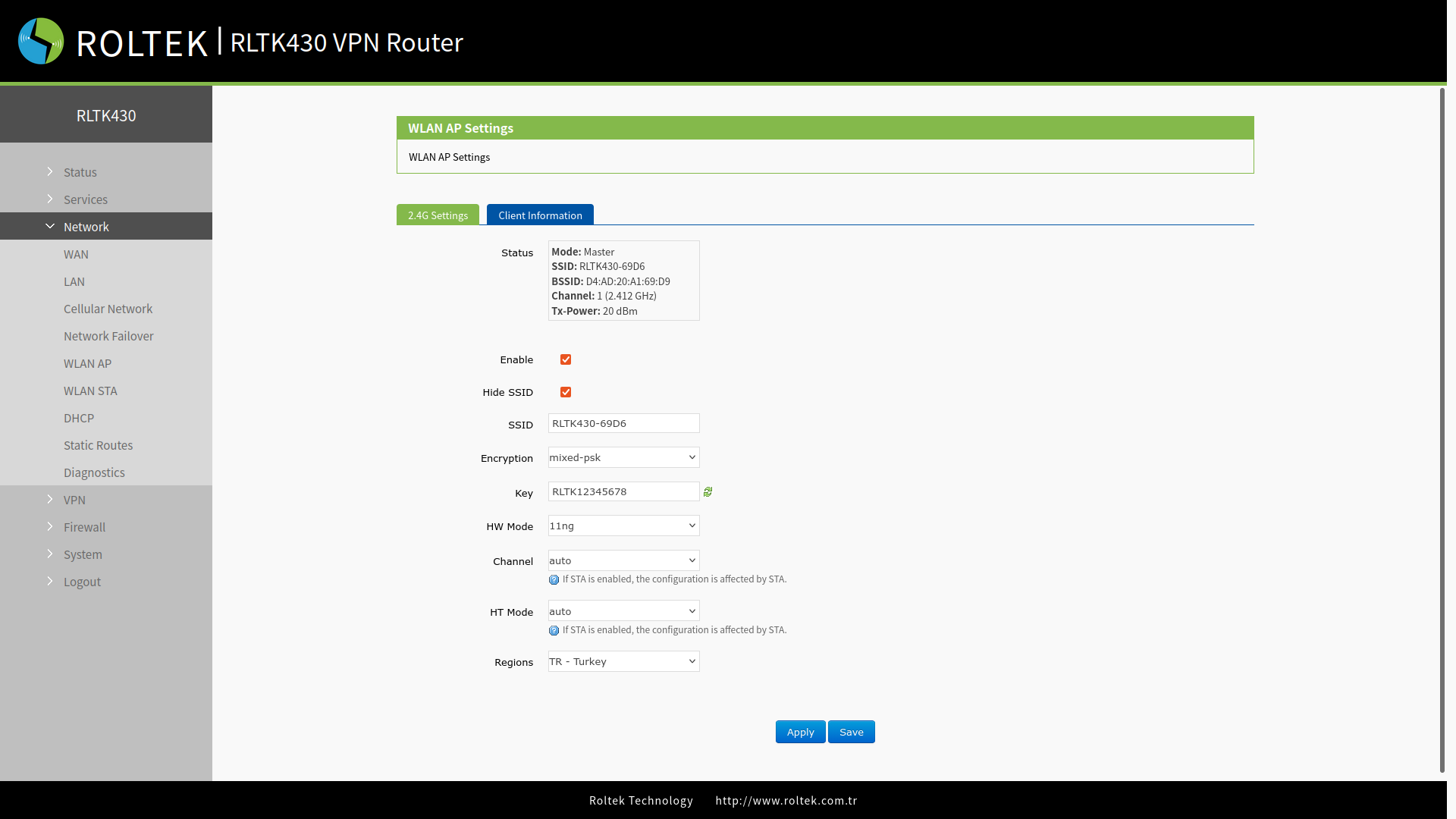
Users can change Wi-Fi parameters in the interface below:
2.4G Settings
You should click on the 2.4G Settings tab. After making your settings, save your changes with the Save and Apply buttons.
| Parameter | Description | Default Value |
|---|---|---|
| Enable | Enable: Activate
Disable: Deactivate. | Disable |
| Hide SSID | Enable (Active): Client devices do not scan for the SSID. If you want to connect to the access point, you must manually enter the SSID on the Wi-Fi client.
Disable (Inactive): Enables SSID broadcasting. This allows client devices to scan for the SSID and connect to your network. | Disable |
| SSID | Wi-Fi network name. | RTLK430-XXXX (last 4 digits of the MAC address) |
| Encryption | No Encryption / mixed-psk / psk+ccmp / psk2 / psk2+tkip | WPA2-PSK |
| Key | Wi-Fi password, changeable. | RLTK12345678 |
| HW Mode | 11n / 11g / 11bgn / 11ng / 11bg / 1b | 11n |
| Channel | Auto, selectable. | Auto |
| HT Mode | auto / HT40 / HT20 | auto |
| Regions | Optional |
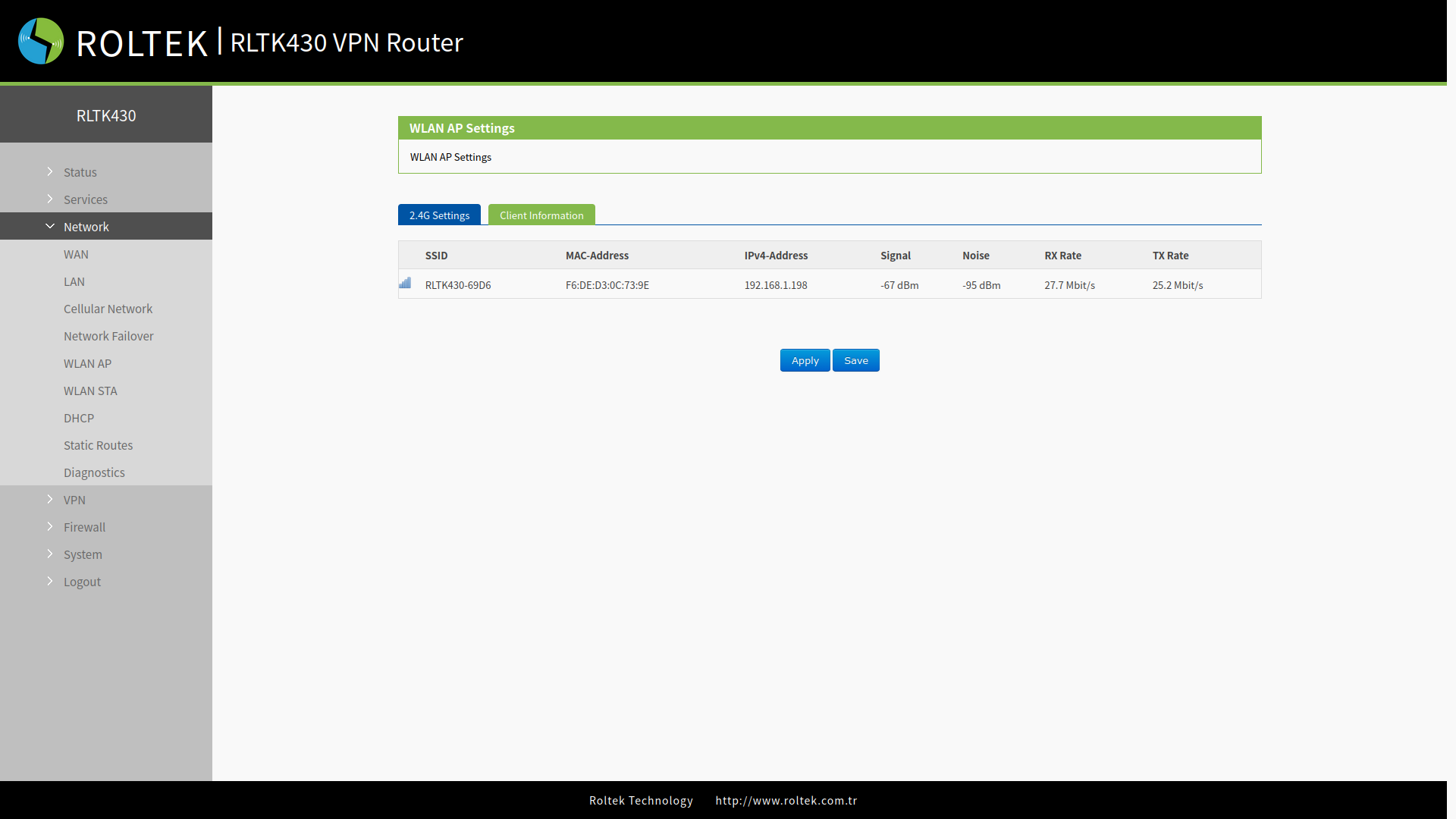
Viewing Wi-Fi Stations
You should click on the Client Information tab.
- MAC Address
- IP Address / Domain Name
- Signal Strength
- Total Data Transmission
can be viewed.