Web Interface
Introduction to the Web Interface
Connect the computer to the LAN port of the RLTK541 via an Ethernet cable or connect the computer directly to the RLTK541's Wi-Fi network, then log in on the web page. The default parameters are as follows:
| Parameters | Default Value |
|---|---|
| SSID | RLTK541-XXXX |
| LAN IP address | 192.168.1.1 |
| Username | root |
| Password | root |
| Wi-Fi Password | www.roltek.com.tr |
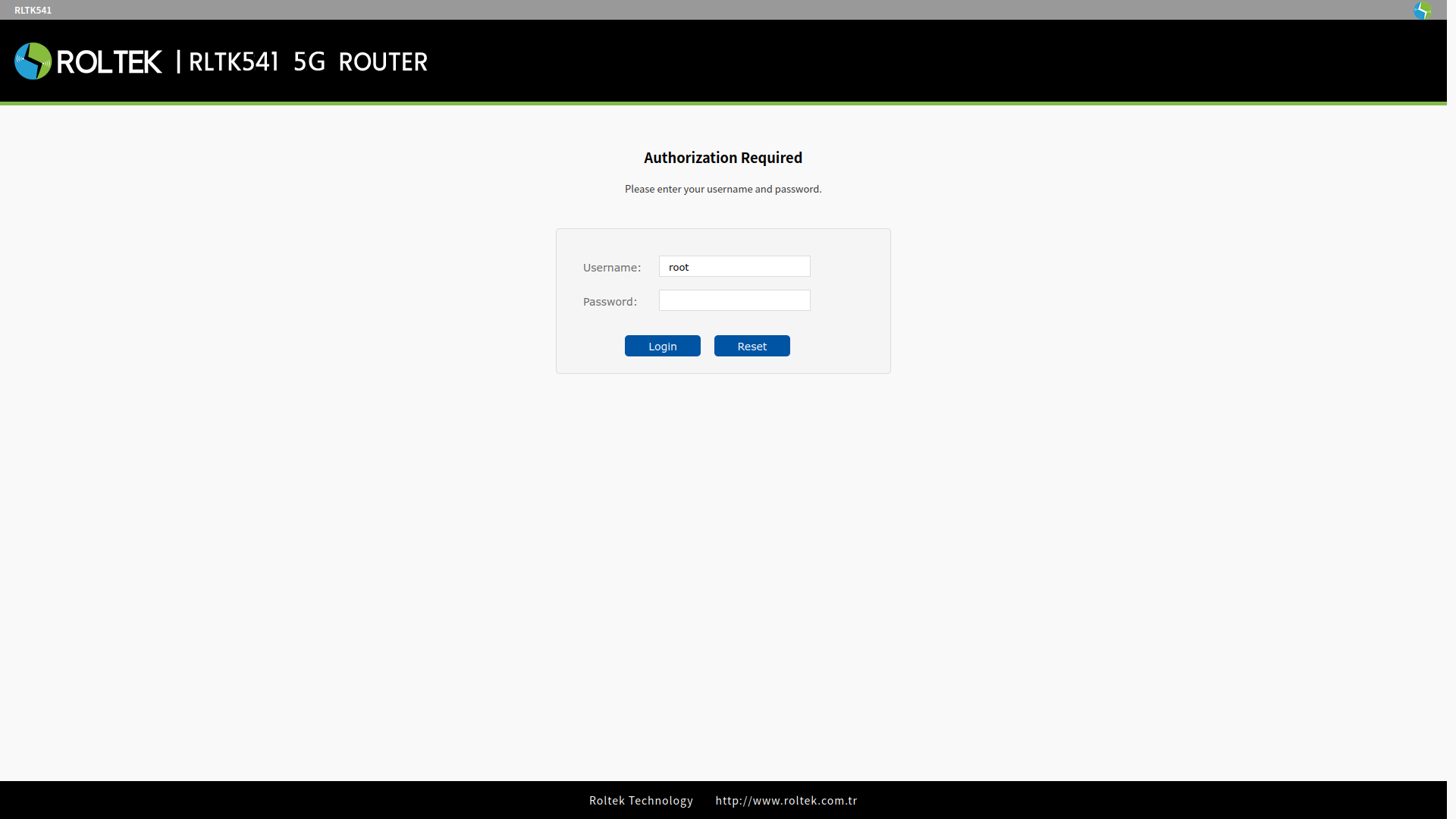
Make sure that the network being used (either ethernet or Wi-Fi) is set to DHCP or that the subnet address is within the 192.168.1.0/24 block. To log in to the RLTK541's web page, type 192.168.1.1 in the browser's address bar. Both the username and password are set to "root". Then click the Login button.
Status Page
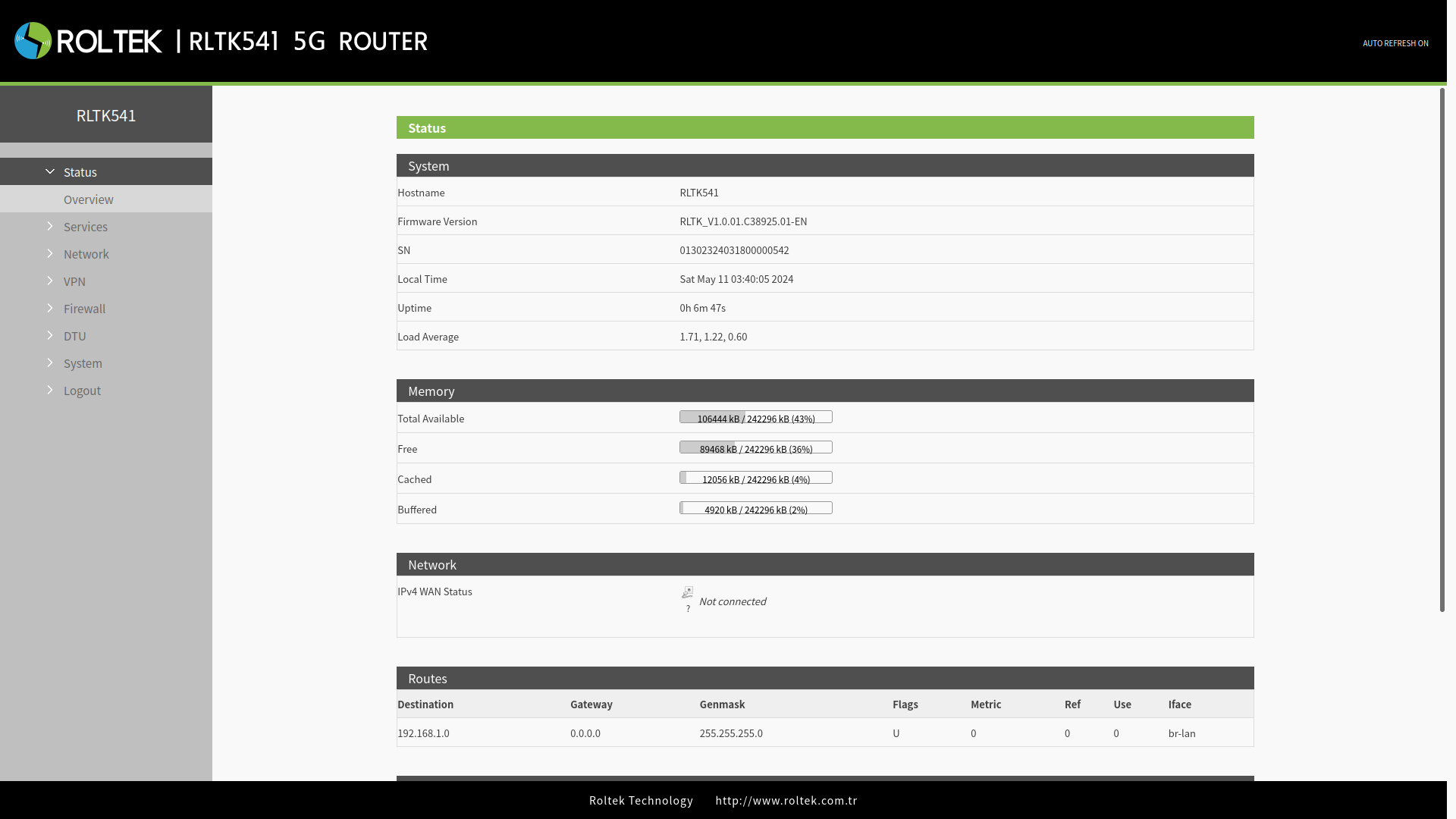
After logging into the device, the Status screen will appear as shown below.
The RLTK541 settings can be configured through the tabs on the left side.
- Status: Displays information about the device.
- Services: Contains various extra functions, DNS, GPS (GPS version).
- Network: Network settings and connections can be configured.
- VPN: VPN configurations, PPTP, L2TP, OpenVPN.
- Firewall: Traffic rules, access logs, port forwarding settings can be configured here.
- DTU: DTU settings such as serial port and socket can be configured.
- System: Basic functions such as log, reboot, software update, backup can be configured.
- Logout: Logs out of the device.