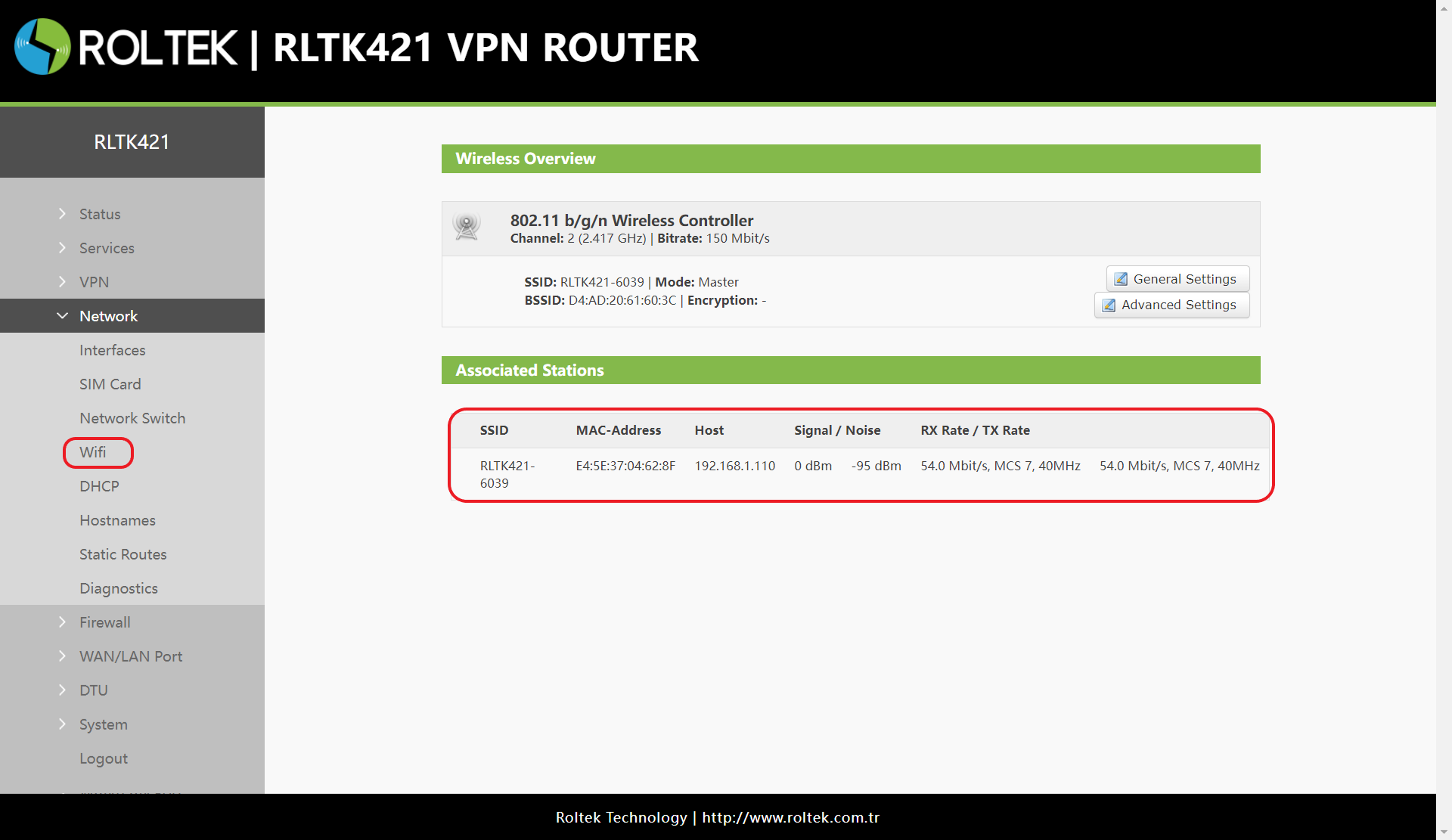
Wi-Fi Interface
RLTK421 supports Wi-Fi AP functionality and has a 2.4 GHz Wi-Fi network.
- RLTK421 is an access point, and other station devices can connect to its Wi-Fi network.
- Up to 24 Wi-Fi stations can be connected to the RLTK421.
- The maximum Wi-Fi range in open areas is 80 meters; obstacles and real-world conditions reduce this distance.
To configure the Wi-Fi interface:
- Follow the menus
- Network
- Wi-Fi
Users can change the Wi-Fi parameters in the interface below:
| Parameter | Description | Default Value |
|---|---|---|
| ESSID | Wi-Fi network name. | RTLK421-XXXX (last 4 digits of the MAC address) |
| Mode | Access Point (AP) | AP |
| Hide ESSID | Enable: Client devices will not scan for the SSID. If you want to connect to the router access point,
the ESSID must be entered manually by the Wi-Fi client.
Disable: Enables SSID broadcasting. This allows client devices to scan for the SSID and connect to your network. | Disable |
| Encryption | WPA2-PSK/WPA-PSK/No Encryption | WPA2-PSK |
| Cipher | CCMP/TKIP/CCMP&TKIP | CCMP |
| Key | Wi-Fi password, can be changed. | RLTK12345678 |
| Radio Enable/Disable | Enable: The Wi-Fi radio will be on, and the Access Point (AP) will be available. Disable: The Wi-Fi radio will be off, the Access Point (AP) will not be available, and the "WLAN" indicator light will turn off. | Enable |
| Network Mode | 802.11b/g/n | 802.11b/g/n |
| Channel | Auto, selectable. | Auto |
| Bandwidth | 40MHz/20MHz | 40MHz |
| Regions | Optional | none |
| Channel | Optional | CH1~11 |
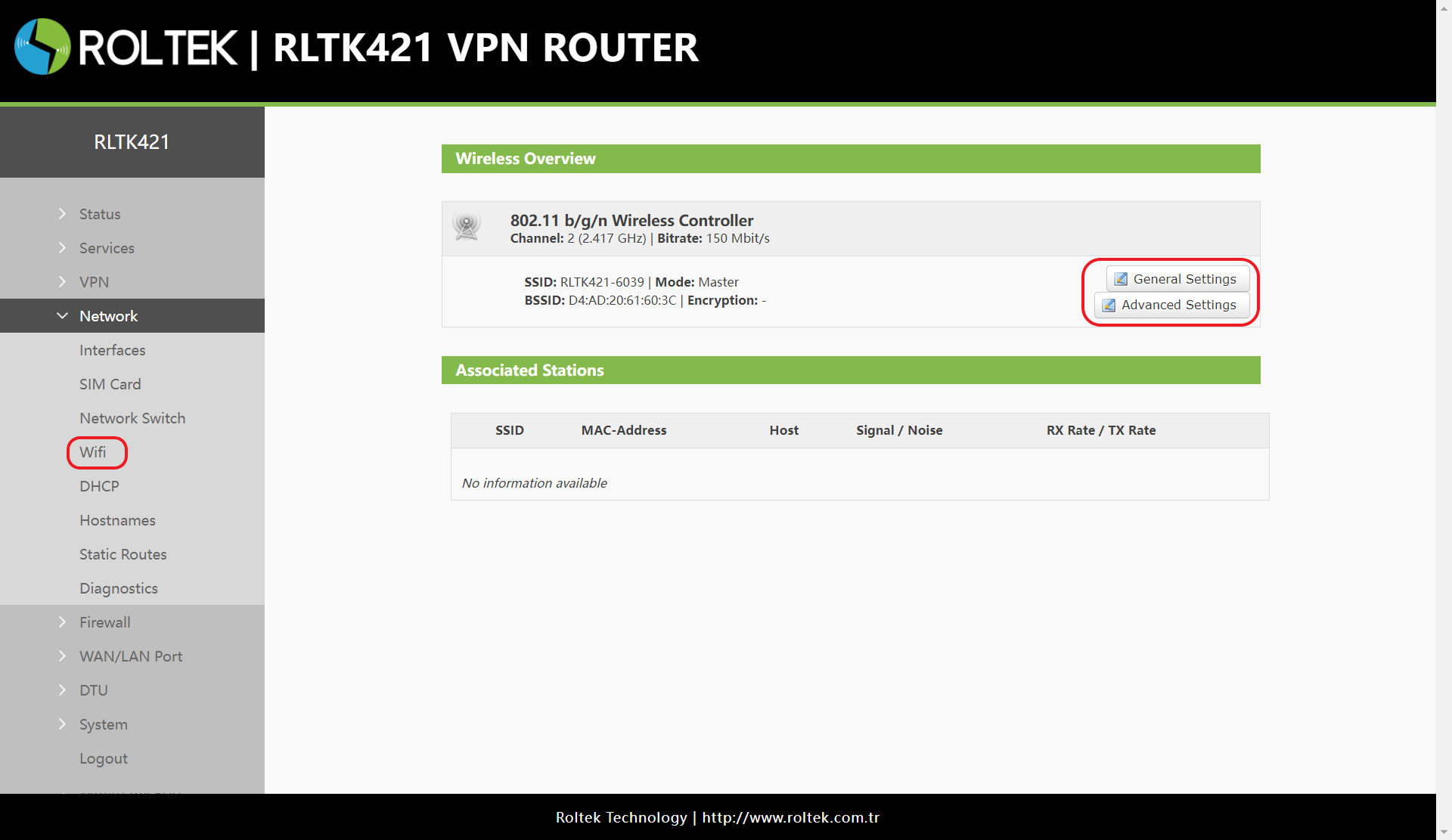
General Settings
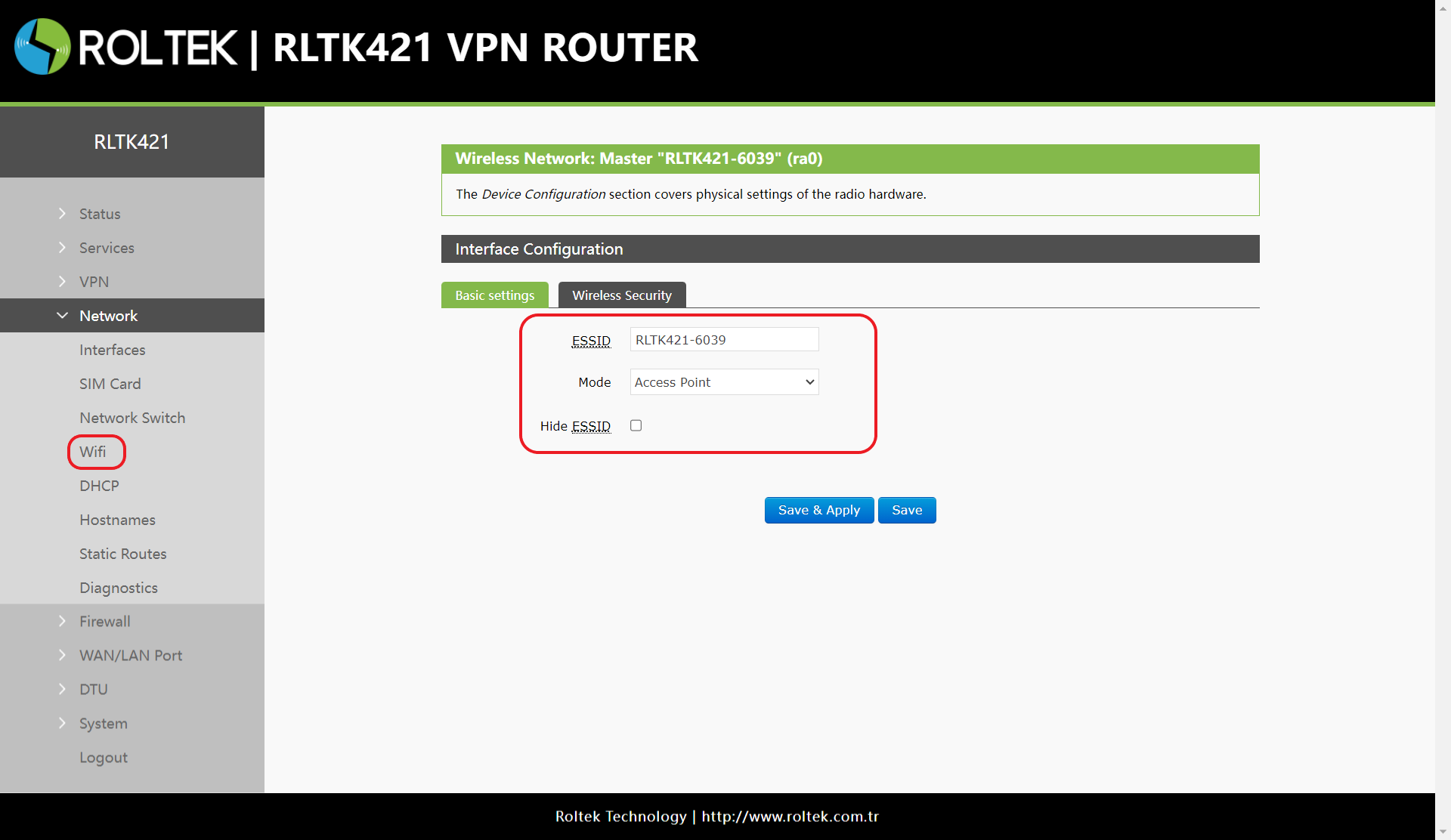
After clicking the General Settings button in the Wireless Overview section, you can change the Wi-Fi SSID, Wi-Fi Mode, and hide the SSID in the Basic Settings section under Interface Configuration:
In the Wireless Security section under Interface Configuration, you can change the Wi-Fi password and network encryption methods:
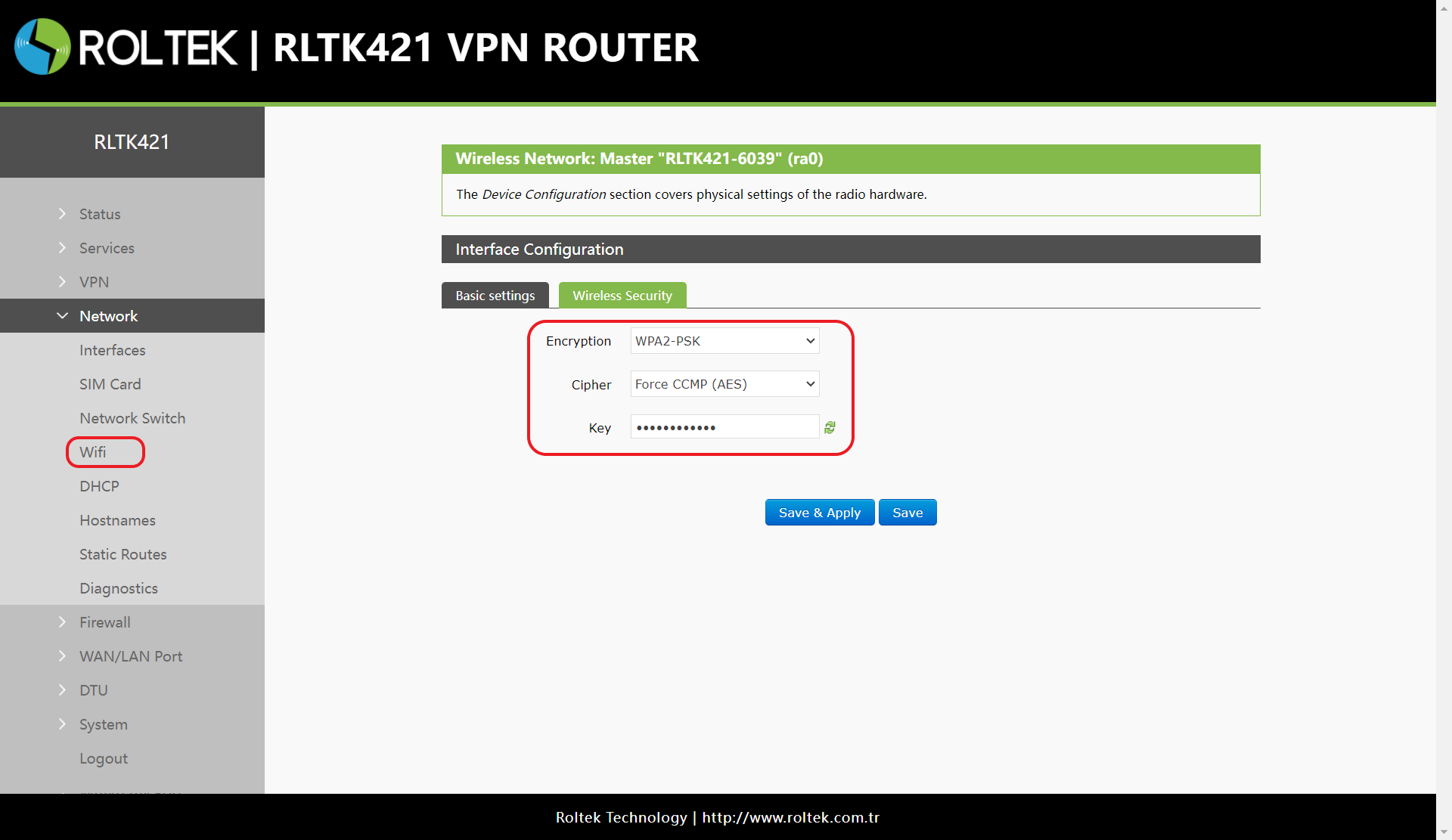
After entering the settings, click the Save & Apply button to save the settings.
Advanced Settings
After clicking the Advanced Settings button in the Wireless Overview section, the settings that can be changed are provided in the General Settings and Advanced Settings sections under Physical Configuration. You can refer to the table above for details on the settings.
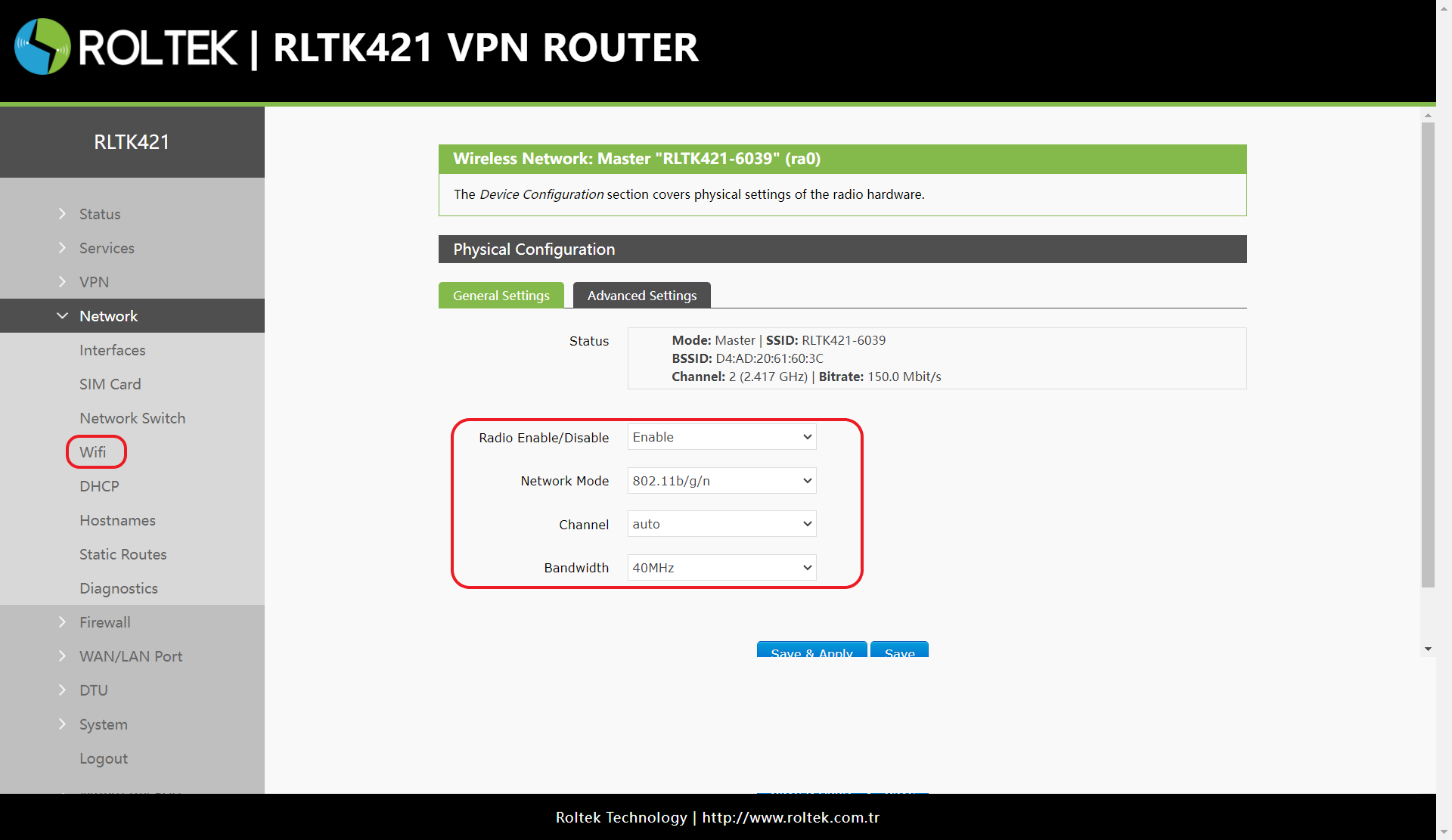
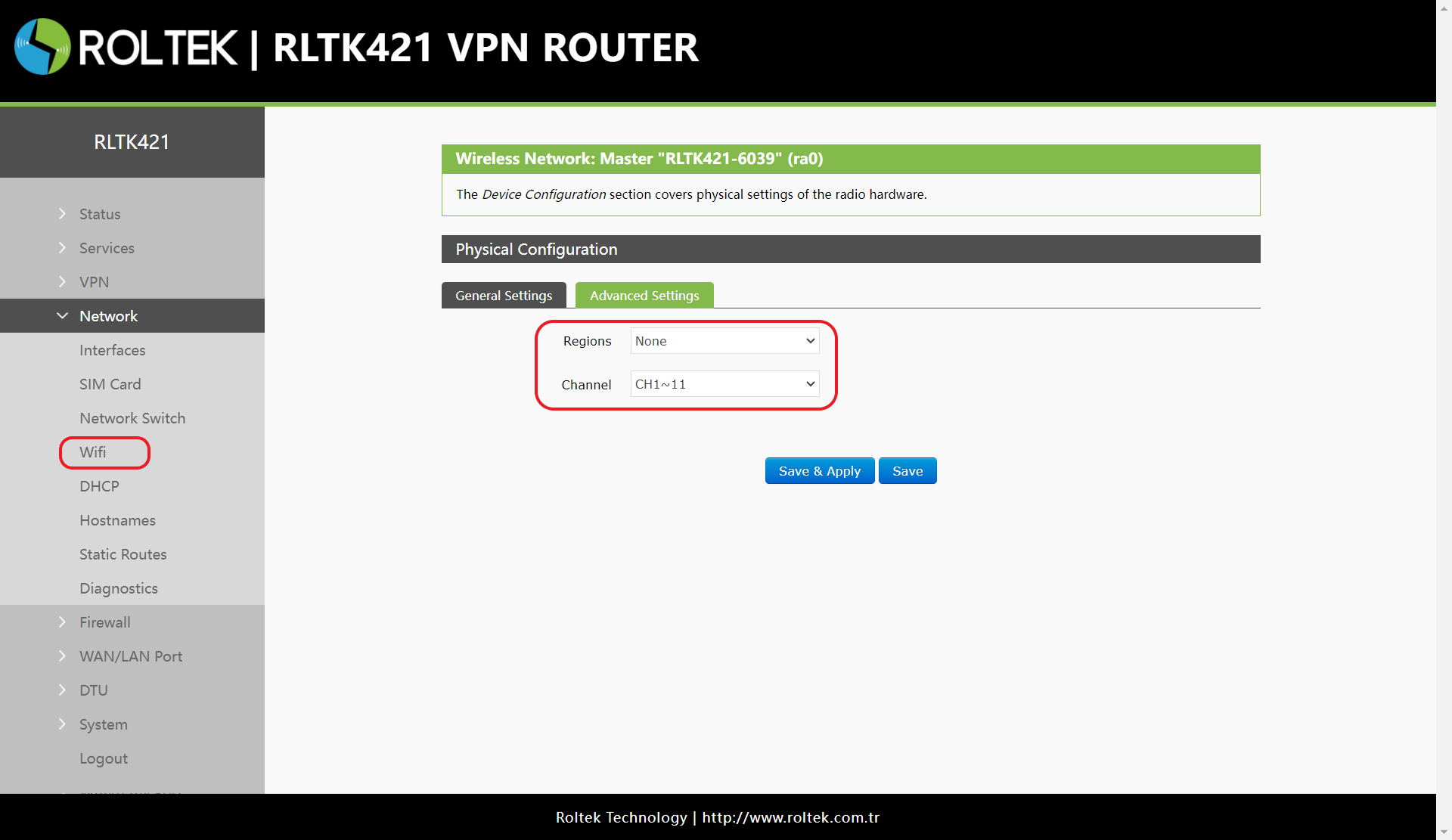
After entering the settings, click the Save & Apply button to save the settings.
Viewing Wi-Fi Stations
To view the stations connected to the RLTK421:
- Network
- Wi-Fi
You can check the Associated Stations section. The connected device's
- MAC Address
- IP Address / Domain name
- Signal Strength
- Total data transmission
can be viewed.