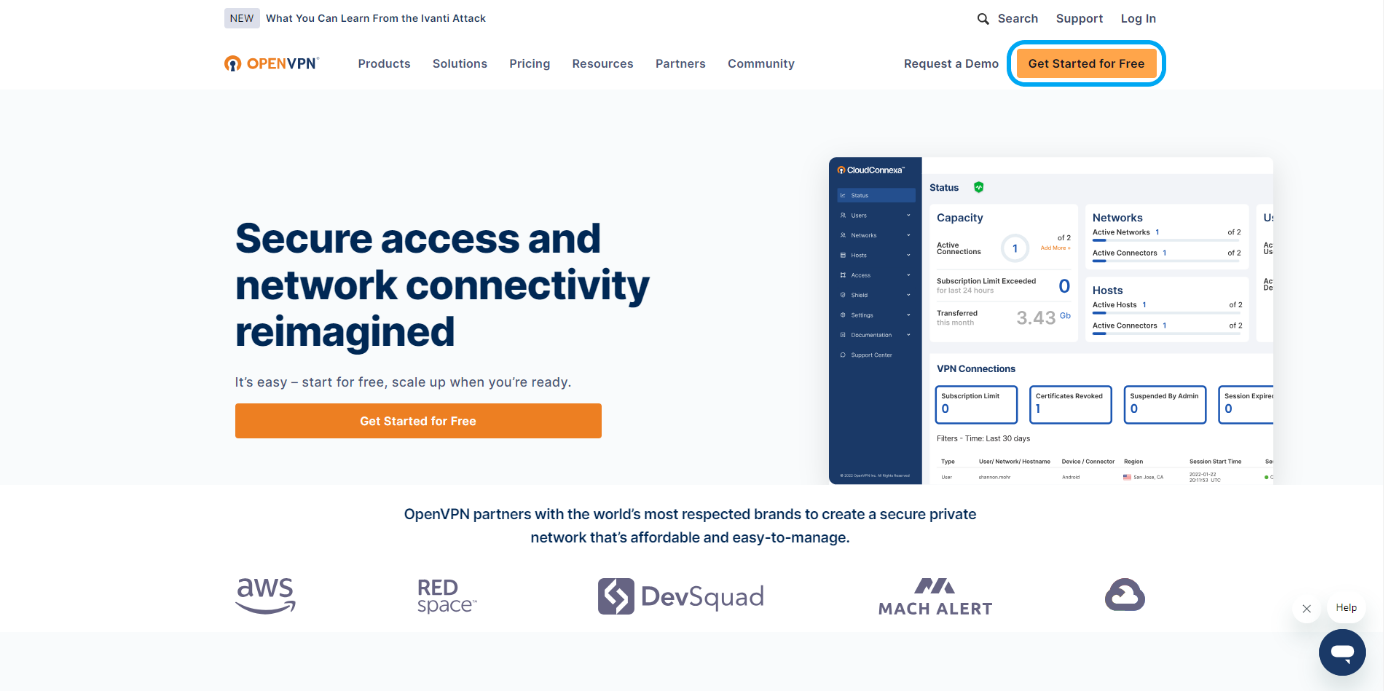
Click the “Get Started For Free” button to create a membership account.
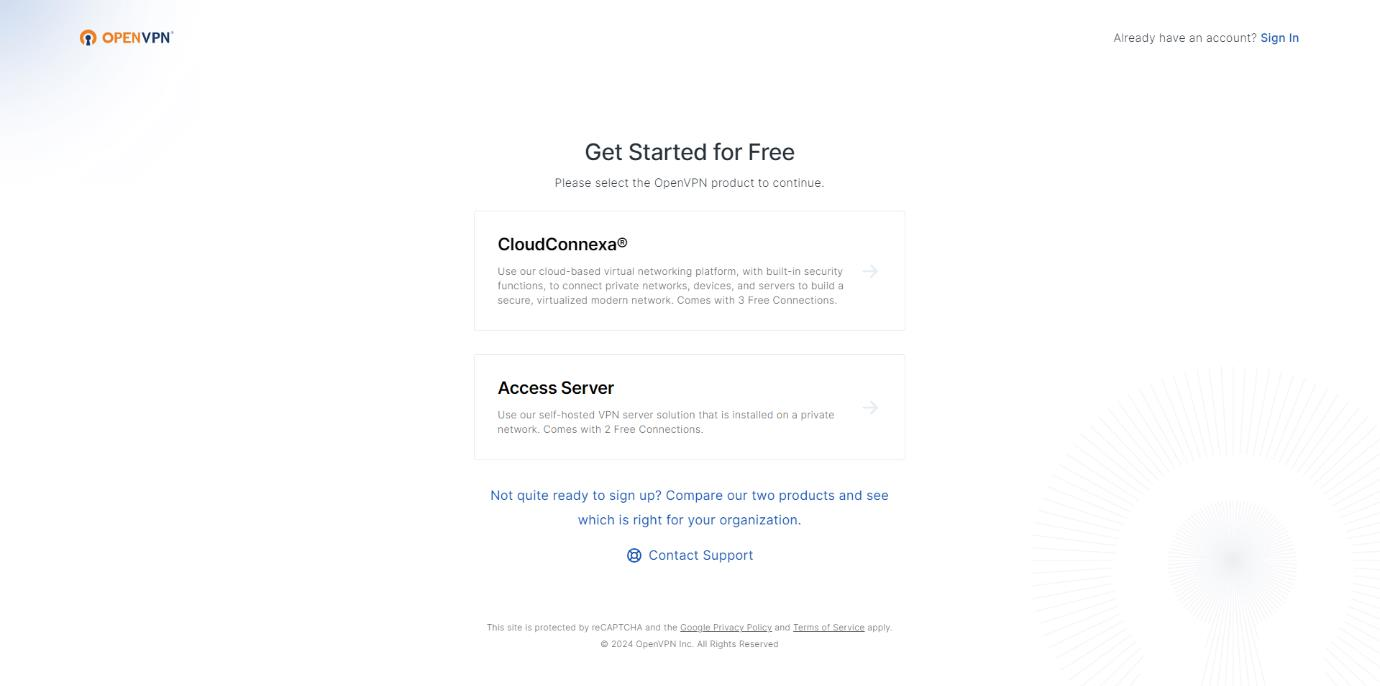
Continue the process by clicking the CloudConnexa button.
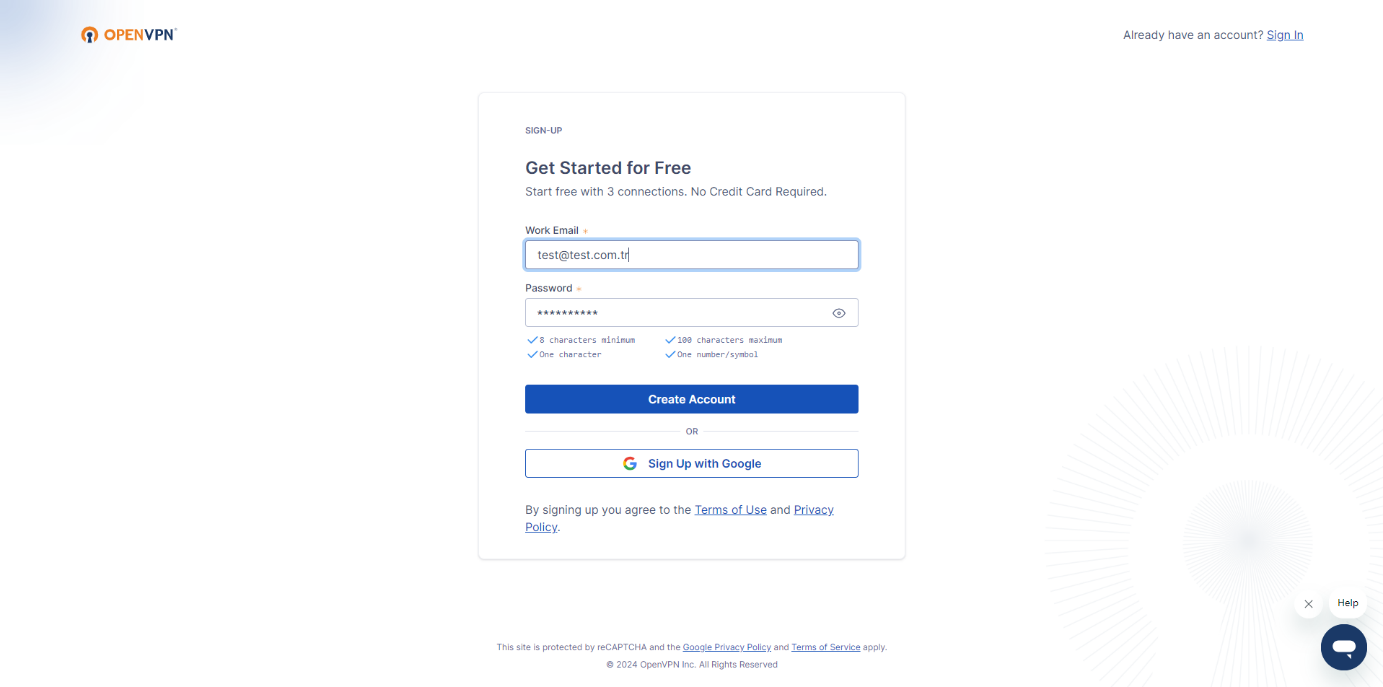
Create an email and password, then click the Create Account button.
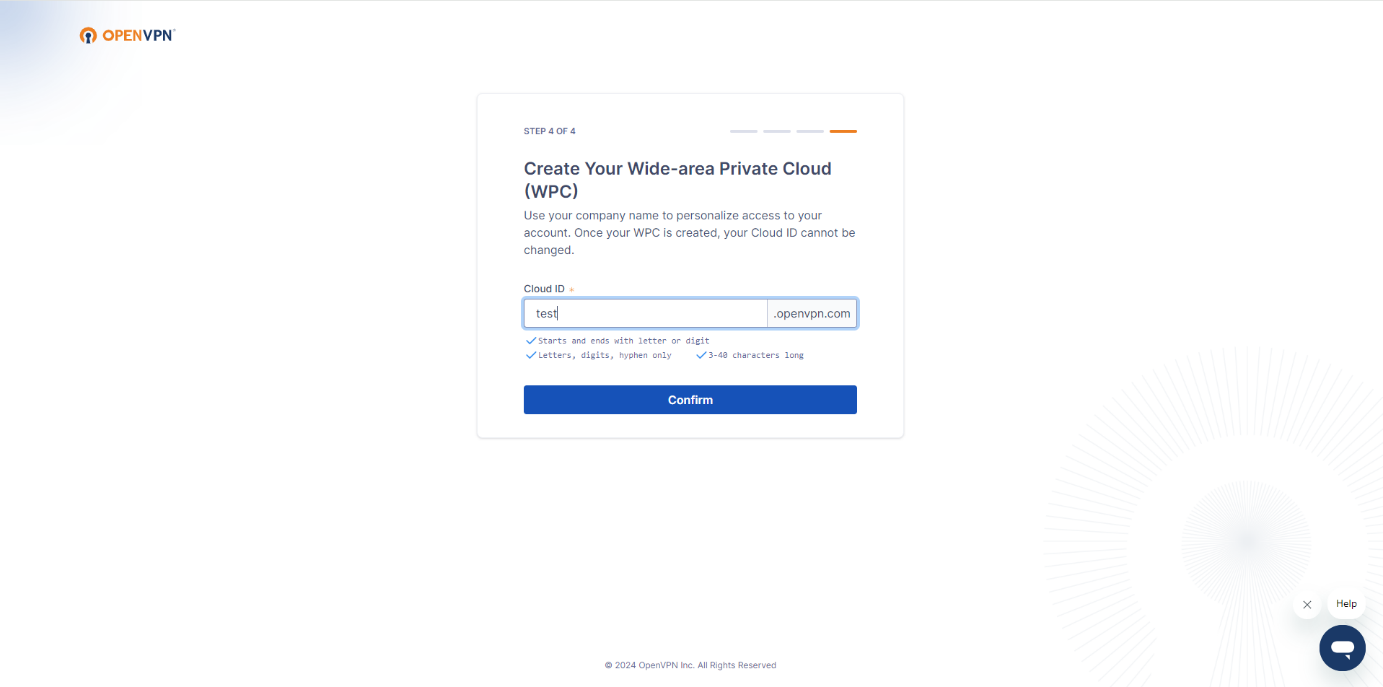
Give a name for the OpenVPN Cloud ID and continue the process.
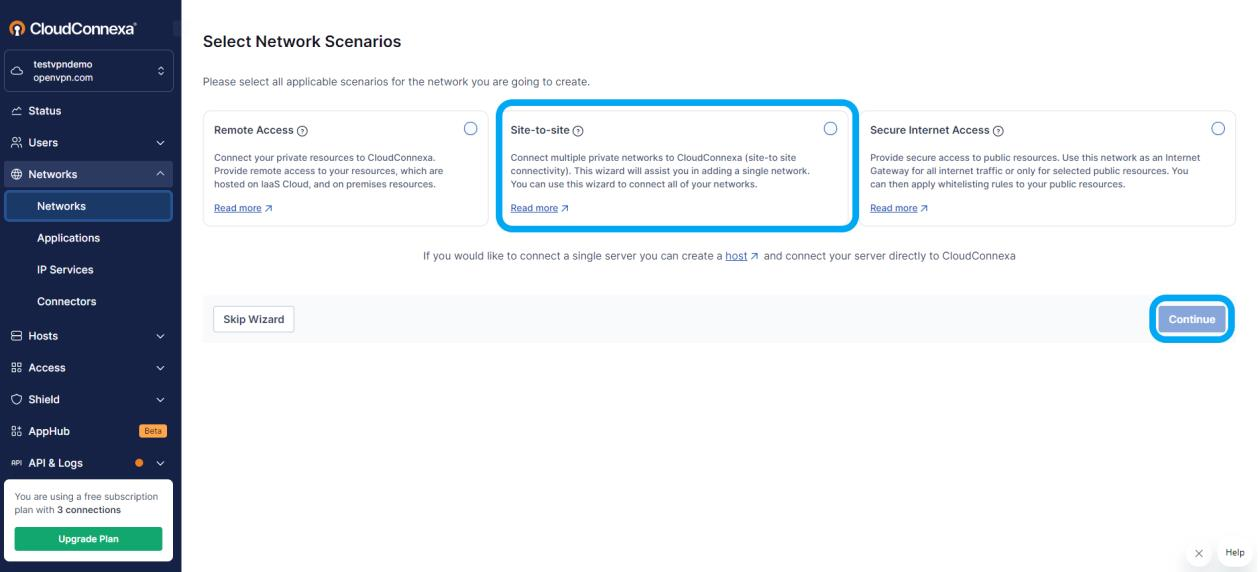
Under the network menu, click the add network button from the network header, select the Site-to-site connection, and continue the process.
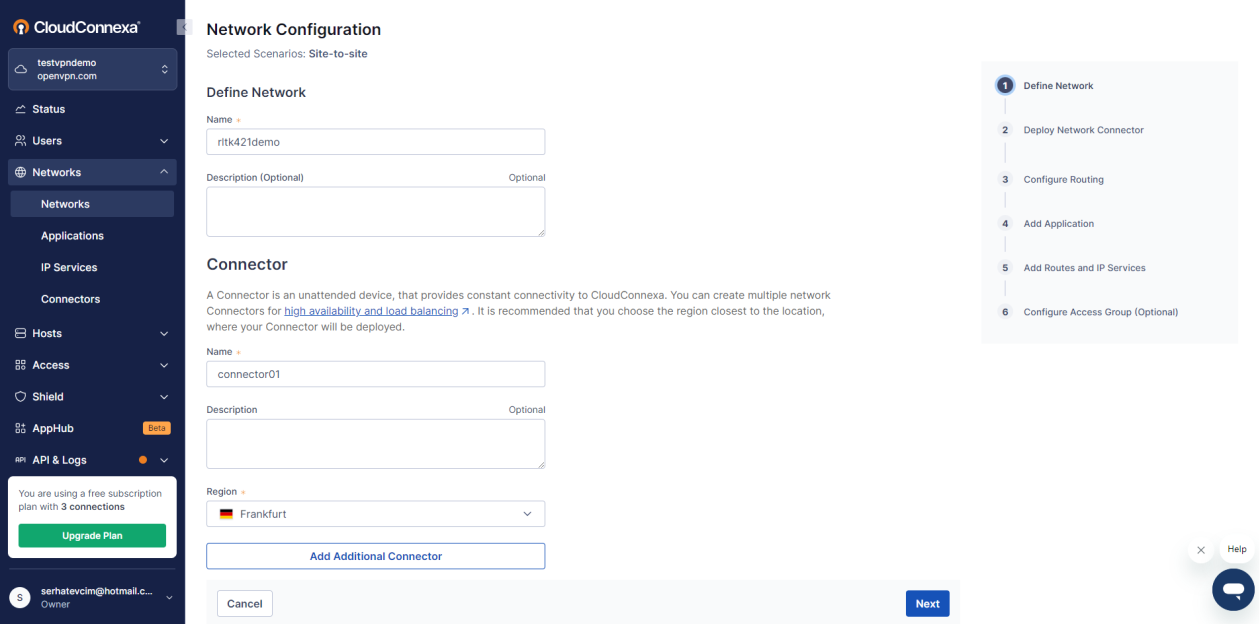
Define a name for the VPN and select a region for the service to continue the process.
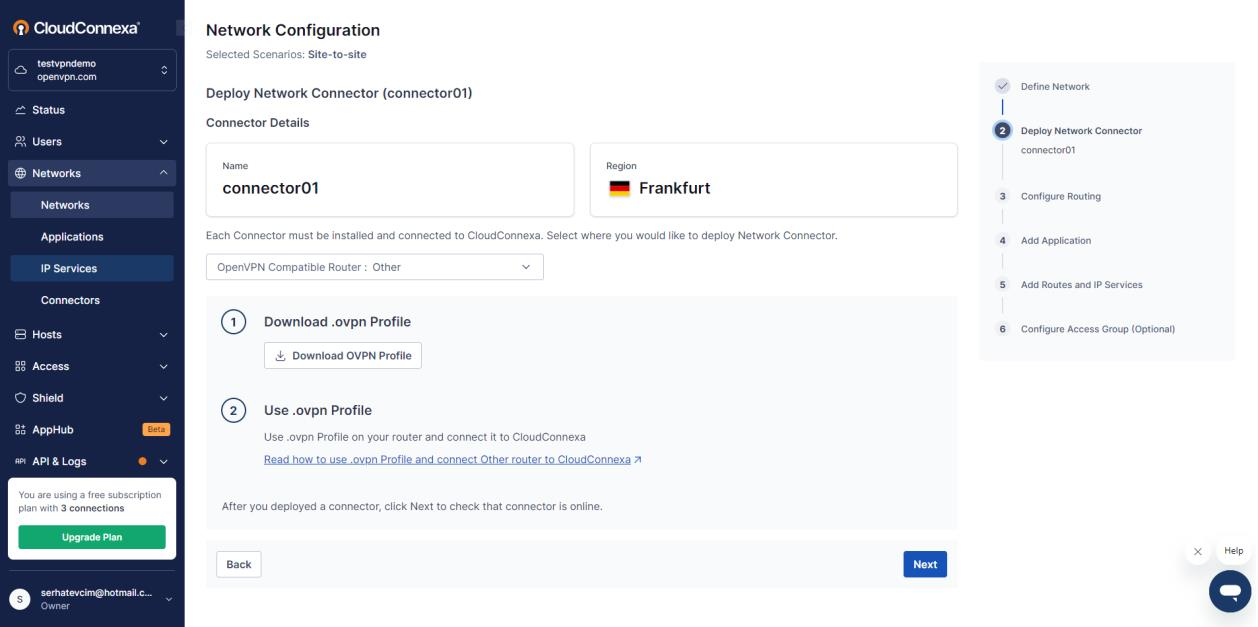
In this section, select the OpenVPN Compatible Router: Other option and download the OVPN file by clicking the Download OVPN Profile button in Section 1. The downloaded file is the VPN file to be uploaded to the Router, so it should be saved.
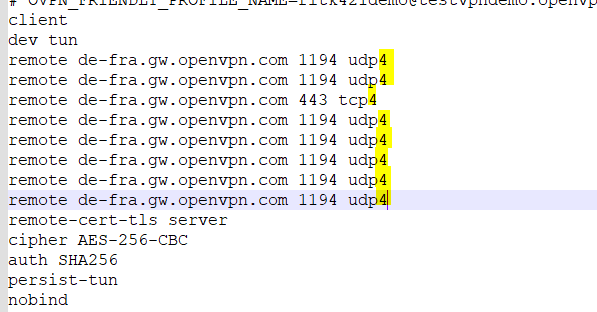
Open the downloaded .ovpn file and add 4 to the ends of the marked lines, then save it.
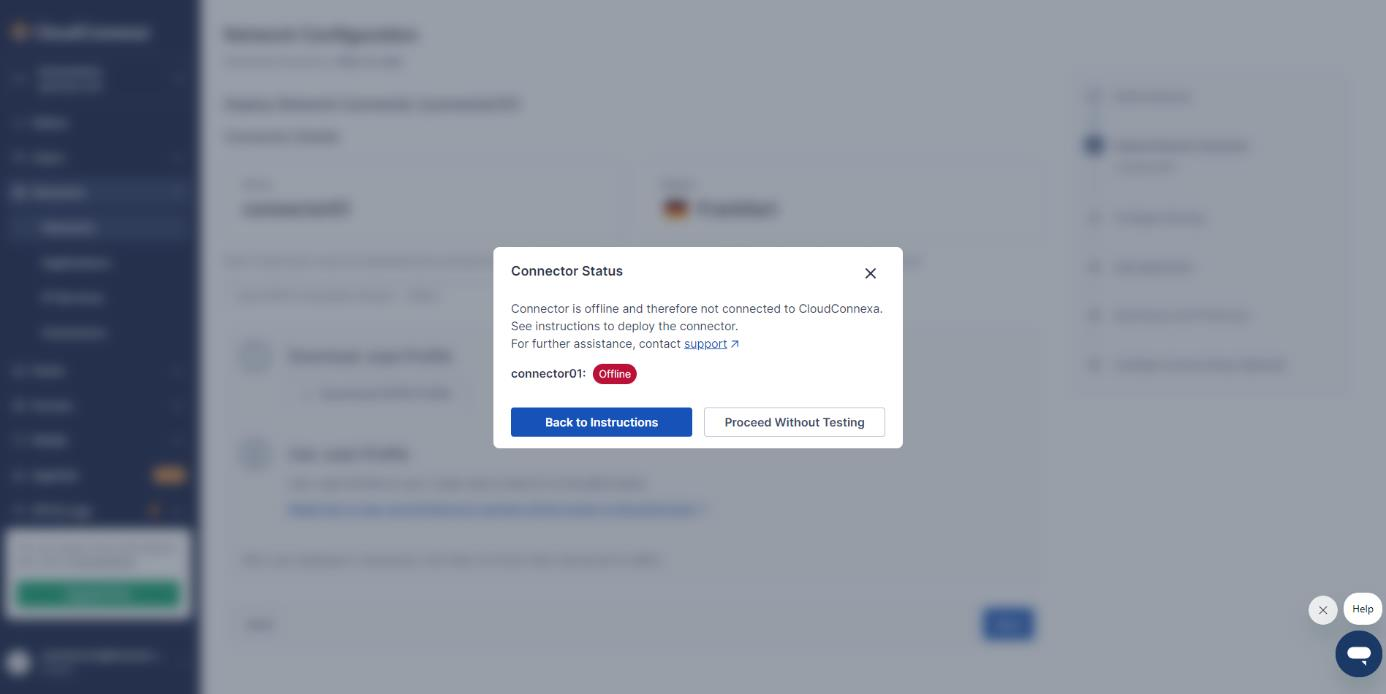
At this stage, since tests will be done later, continue the process by clicking the Proceed Without Testing button.
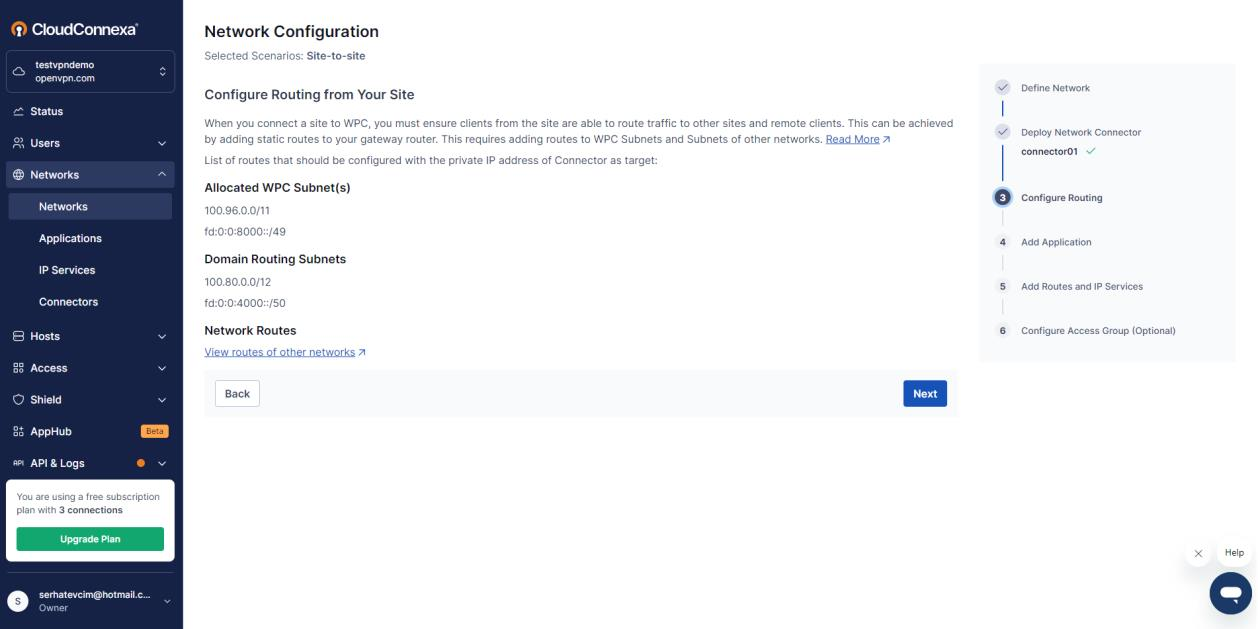
At this stage, continue the process by clicking the next button without performing any actions.
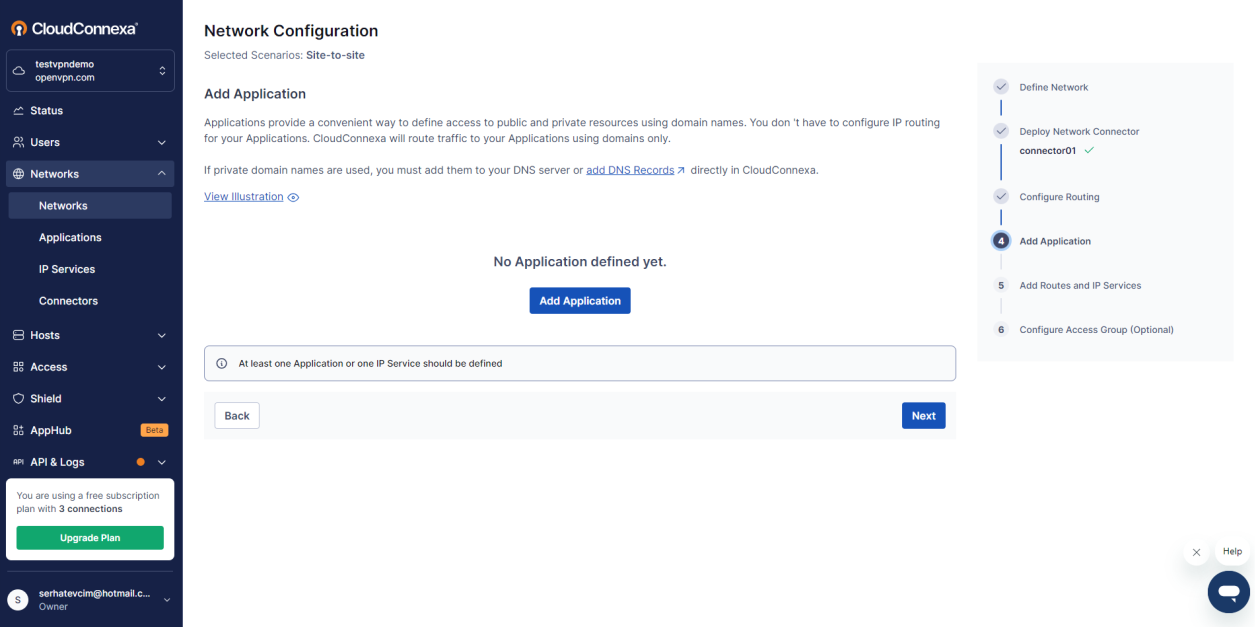
At this stage, click the Add Application button and proceed to the application creation menu.
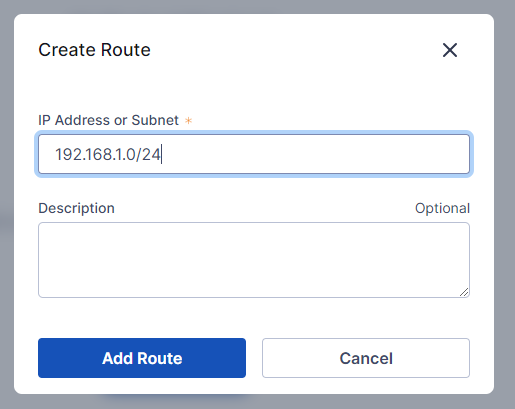
In this section, set the IP block configuration of the LAN interface used by the Router from the Create Router section (default Router 192.168.1.0/24). Click the Add Router button to proceed to the next step.
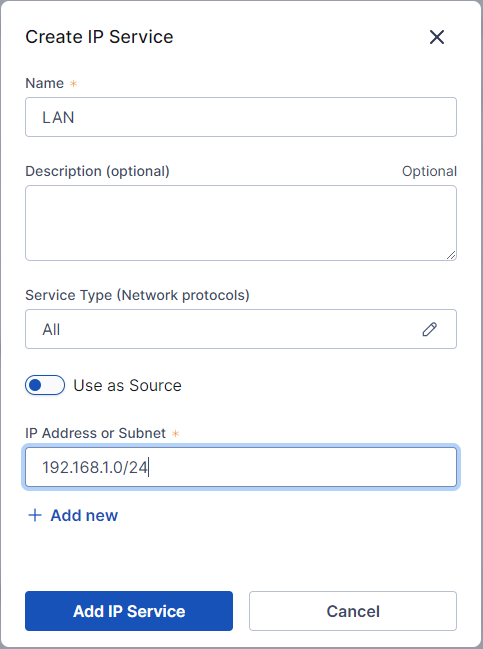
Set the IP block configuration of the LAN interface used by the Router with the Create IP button (default Router 192.168.1.0/24). If the protocol to be used is unknown, select the “All Protocol” option and click the Add IP Service button.
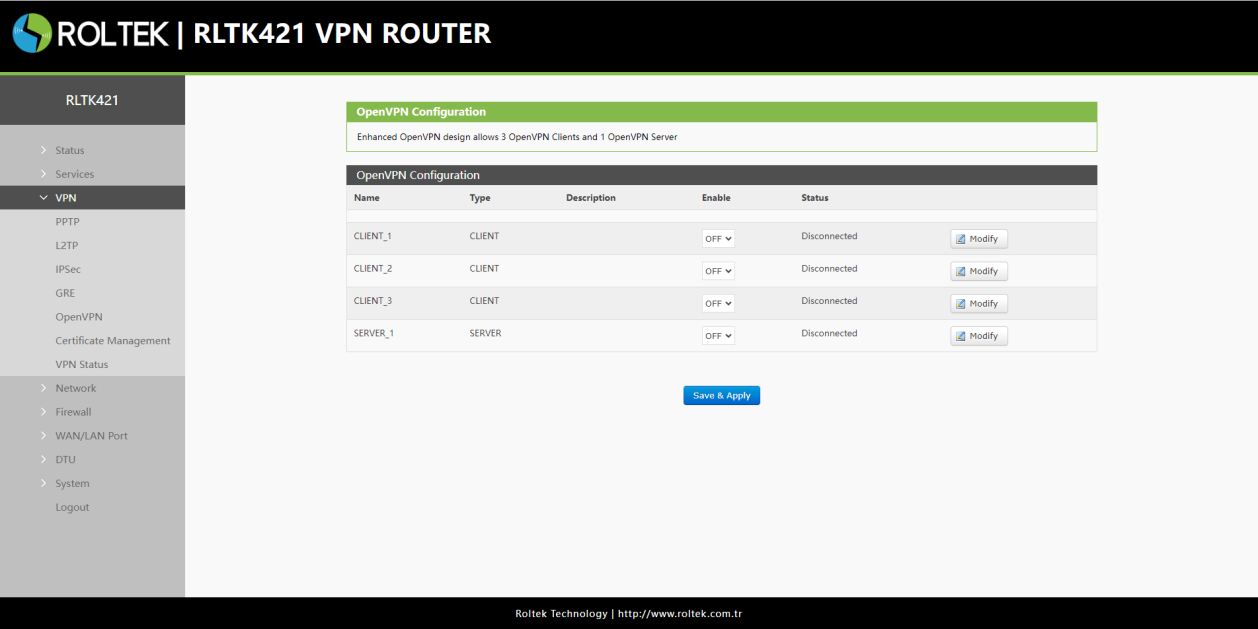
After these operations, access the Router interface and click the OpenVPN button under the VPN menu. Then, as the first preference, click the Modify button in the CLIENT_1 section.
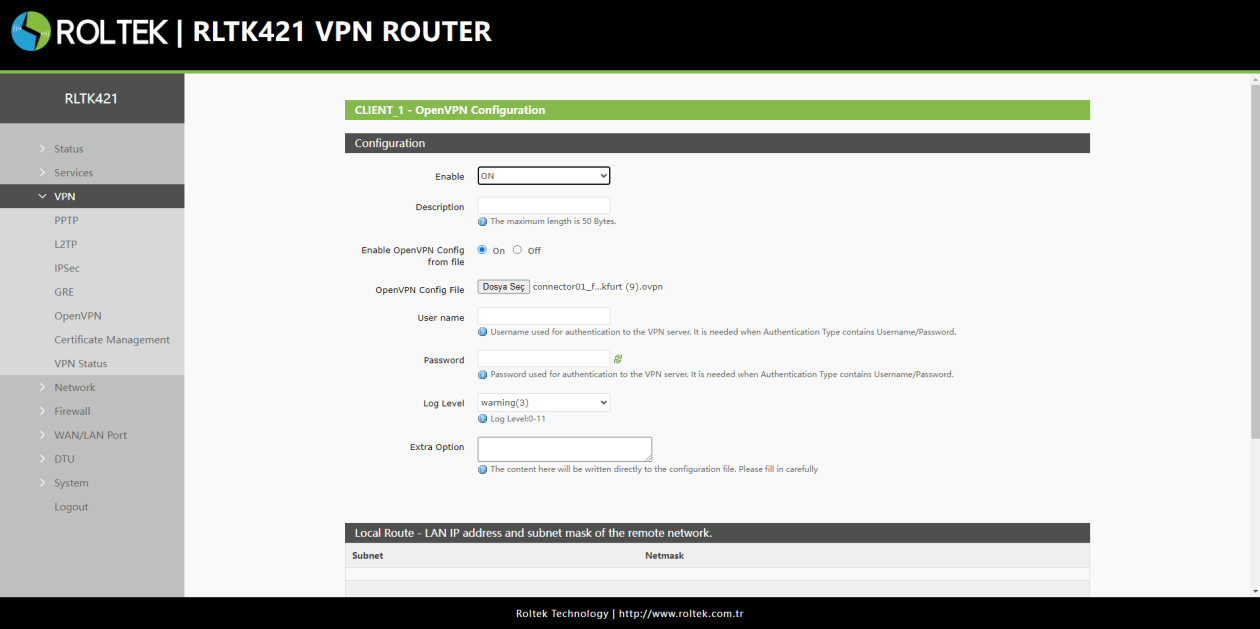
In this section, set the Enable section to ON and the Enable OpenVPN Config From File section to ON, then add the VPN file downloaded in Section 7 from the file selection section and save the settings by clicking the Save & Apply button.
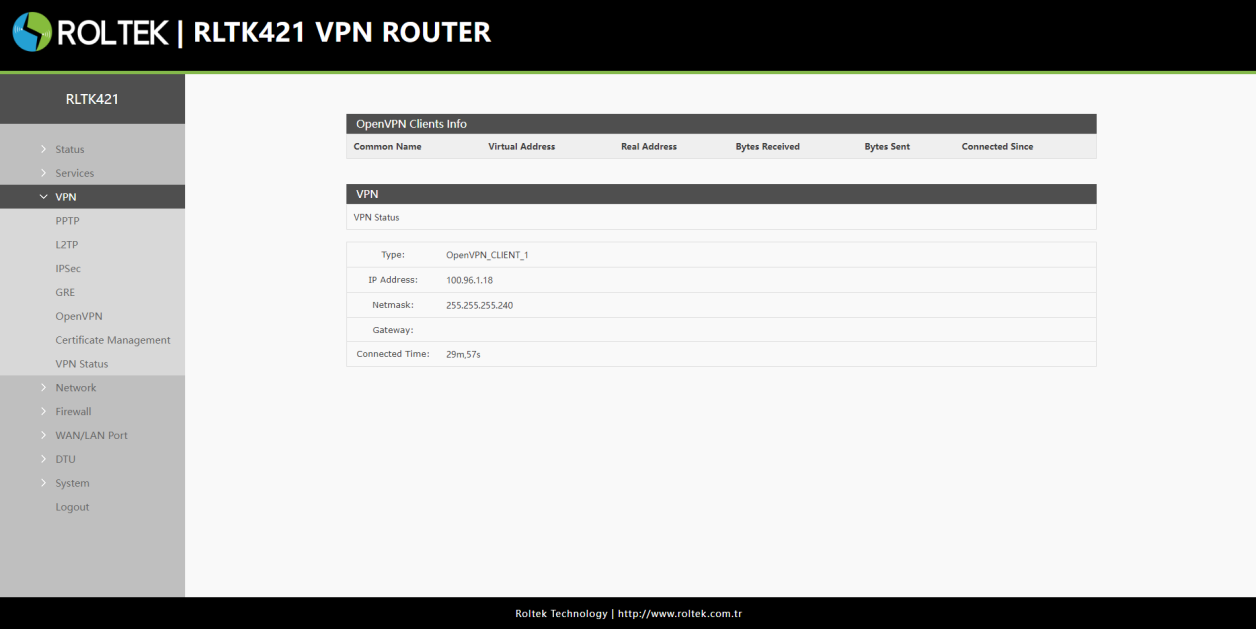
In this section, test the VPN connection by pressing the VPN Status tab under the VPN menu. Information such as the VPN connection, connection duration, and address can be seen at this stage.
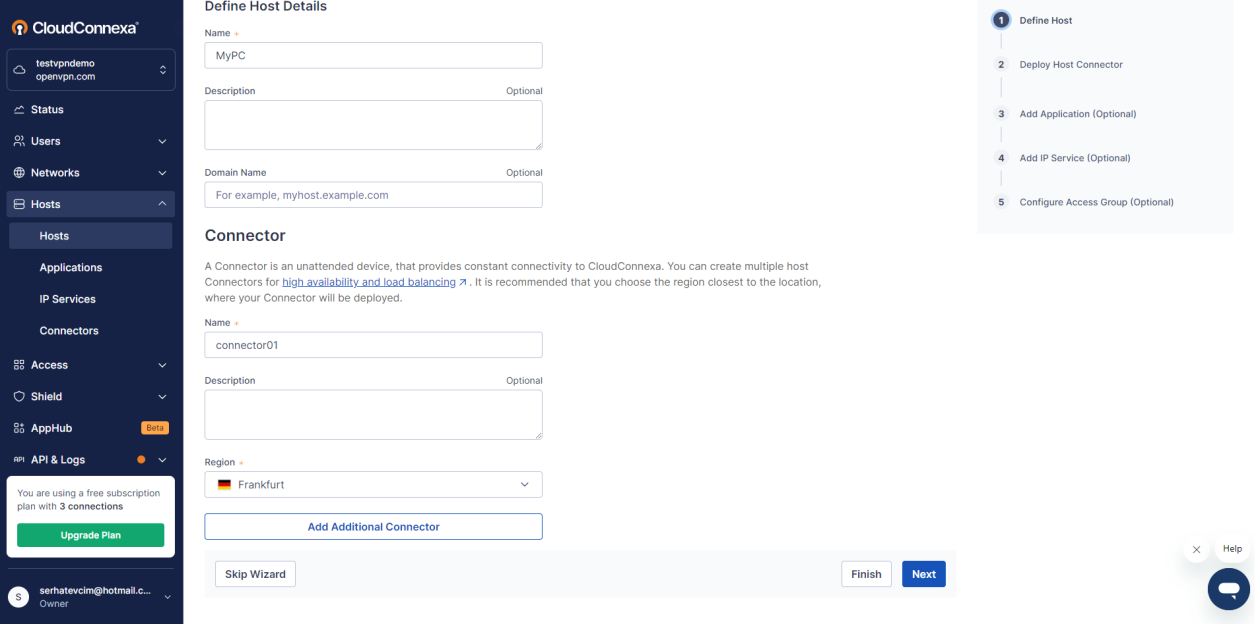
In this section, the process of creating a Host for the computer is performed. A new Host is created from the Host section under the Host menu. The Name and region are defined, and the process continues by clicking the next button.
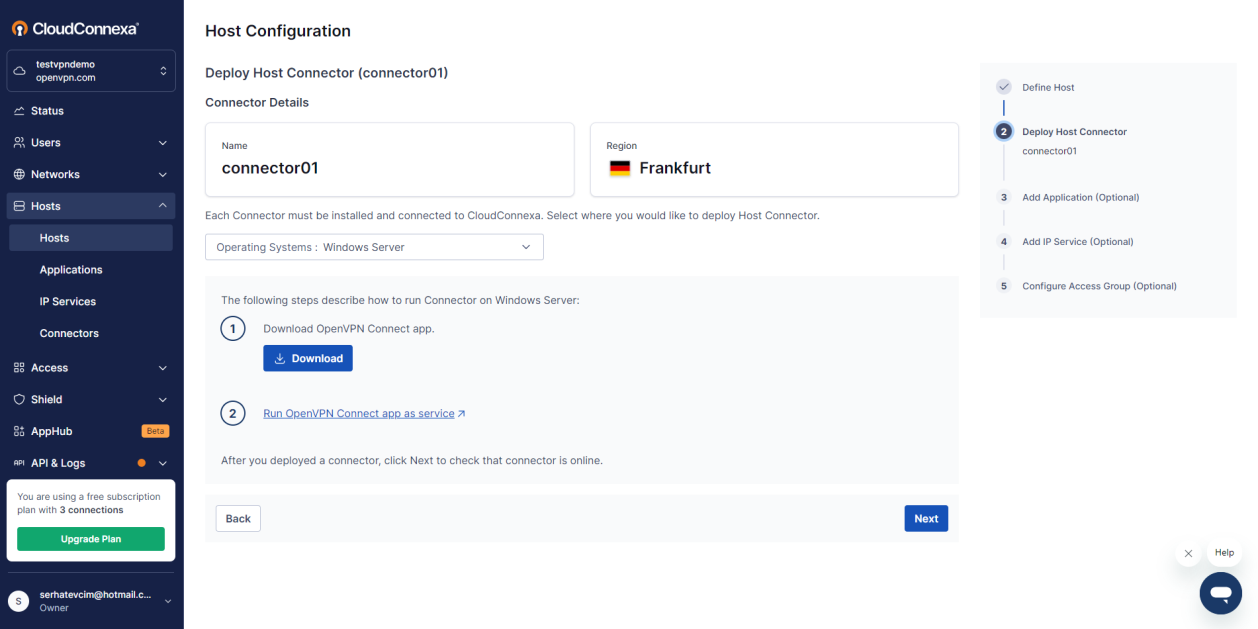
In this section, click the Windows Server option for the Windows operating system, and download the OpenVPN Connect App software that will run on Windows computers from Section 1.
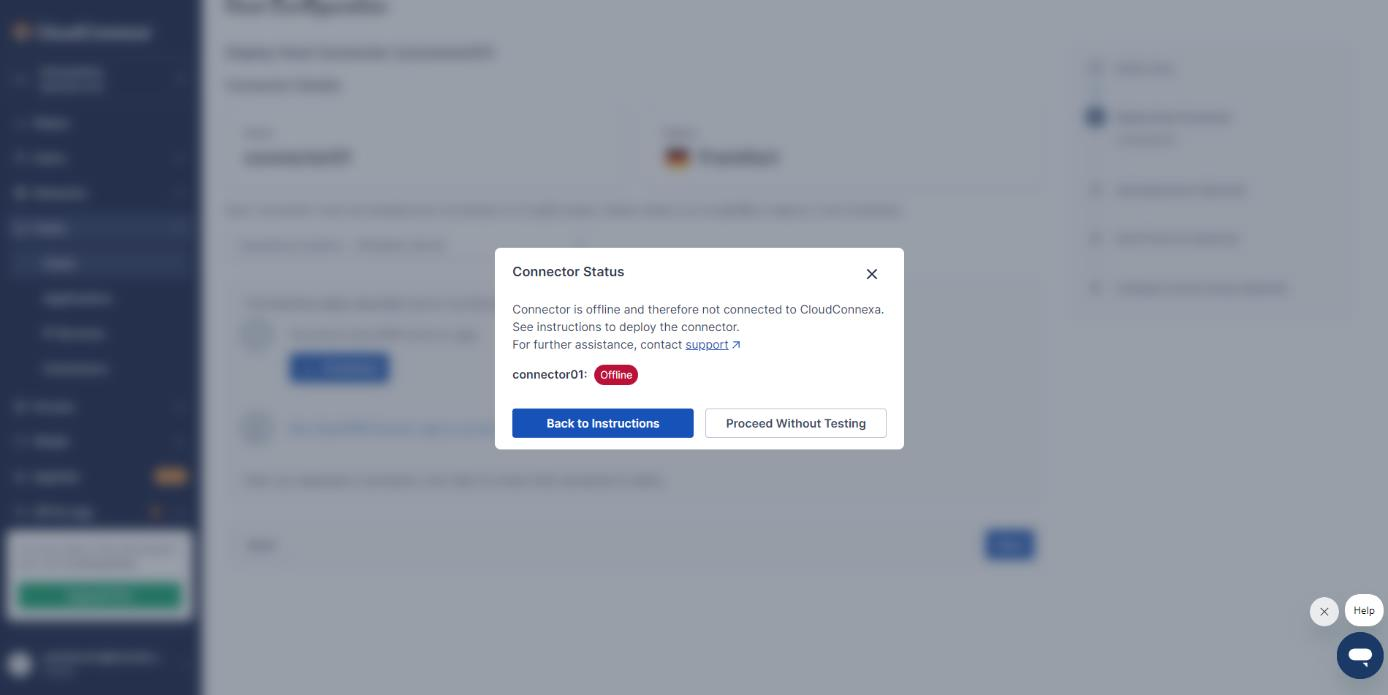
In this section, since the test will be done later, continue with the Proceed Without Testing button.
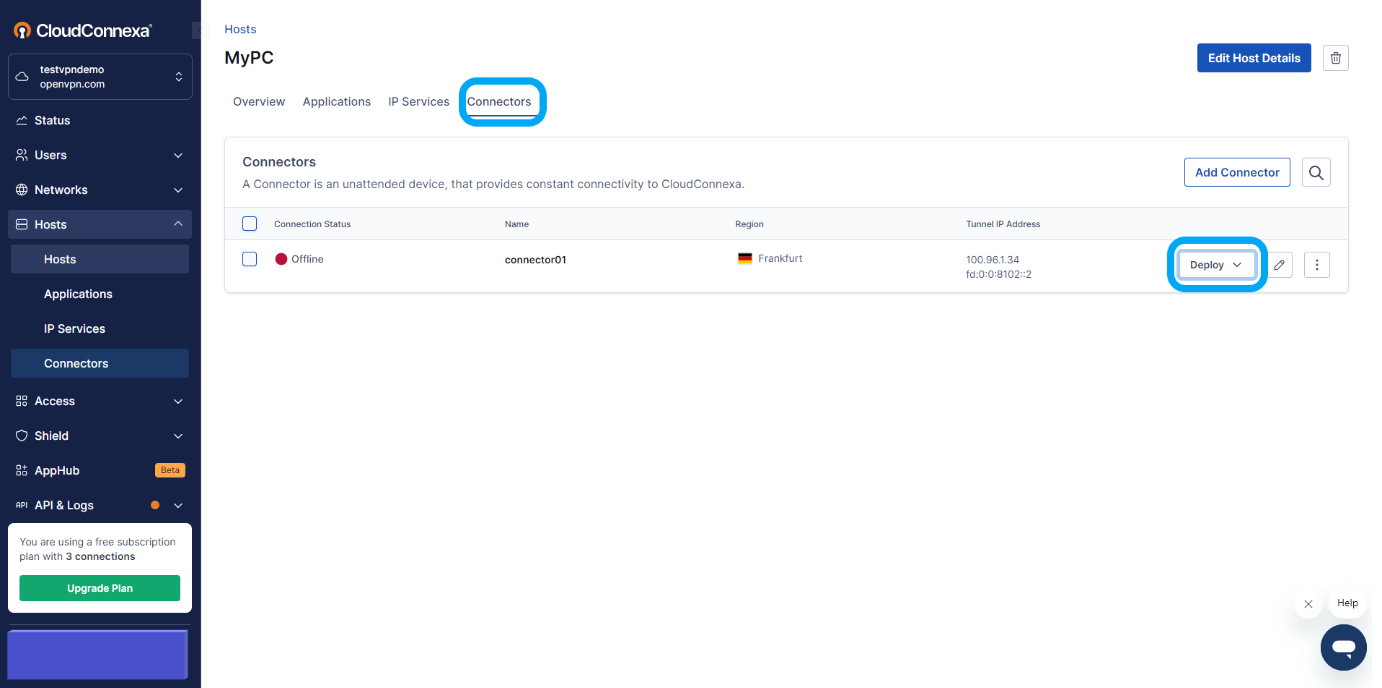
After all operations are completed, click the Deploy button under the Connectors header and then click the Download profile in .ovpn format button to download the VPN file. This file will be used for the connection of our computer.
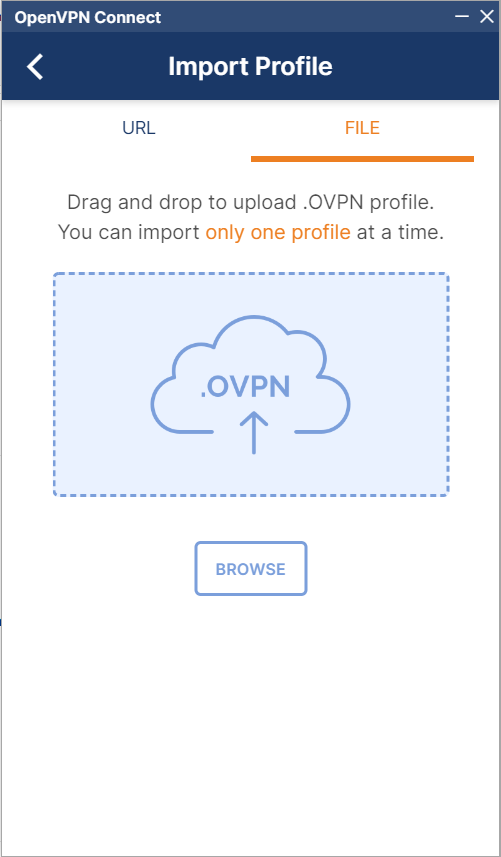
In this section, run the OpenVPN Connect App software downloaded in Section 17, install it, and then in the opened program, select the file in the import profile tab and press the connect button. Then our computer will connect to the VPN network.
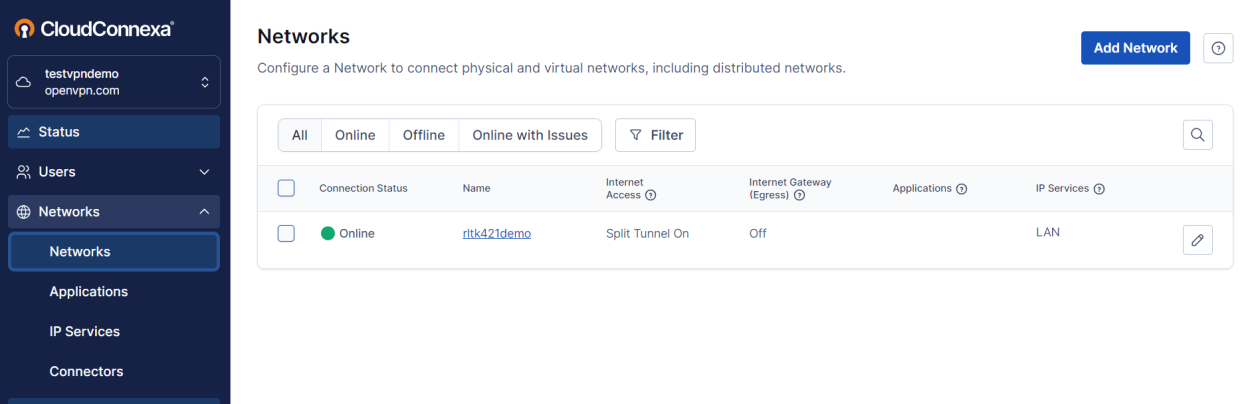
On the Cloudconnexa site, the device should be visible online under the network menu.
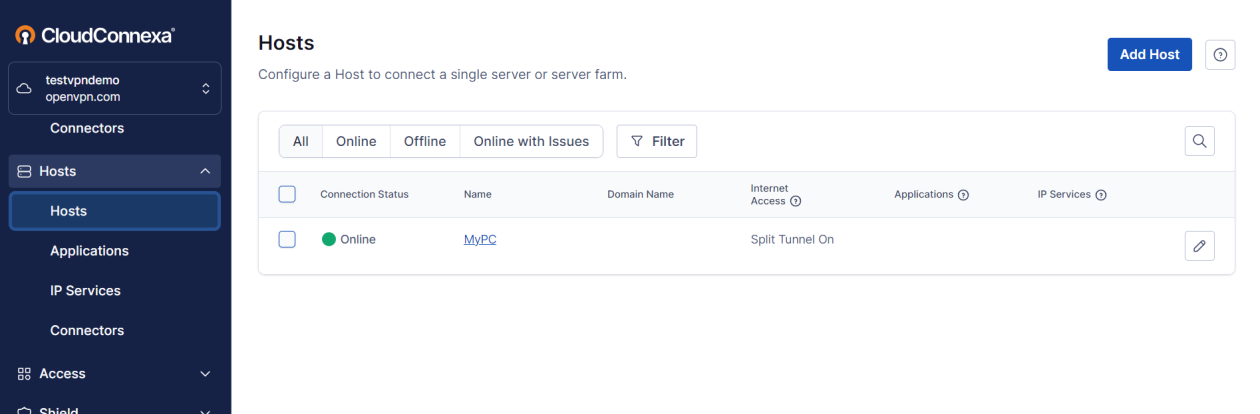
On the Cloudconnexa site, our computer should be visible online under the host menu.
In this case, our computer and router can operate on the same network. It can be tested by accessing the router interface or pinging devices connected to the router.