Web Interface
How to Connect to the Device
To connect to the device interface, either Ethernet or Wi-Fi can be used.
To connect to the device using Ethernet, the user's computer IP address must be reconfigured to be in the same IP block as the device and different from the device's IP address. The device's default settings are as follows:
| IP Mode | Static IP Address |
|---|---|
| Default IP | 192.168.0.2 |
| Subnet Mask | 255.255.255.0 |
| Default Gateway | 192.168.0.1 |
To connect to the device using Wi-Fi, the SSID MODPROBUS-XXXXXXXXXX (where X parts will be the device's serial number) can be searched from a mobile device or computer. The password is the device's serial number. The modem will automatically assign an IP address to the client device. The device's default settings are as follows:
| Wi-Fi Mode | AP |
|---|---|
| IP Mode | Static IP Address |
| Default IP | 192.168.4.1 |
| Subnet Mask | 255.255.255.0 |
| Default Gateway | 192.168.4.1 |
If the hardware setup and connection part is successfully completed, searching for the modem's IP address (192.168.0.2 for Ethernet connection, 192.168.4.1 for Wi-Fi connection) or http://modprobus-XXXXXXXXXX.local (where X parts will be the device's serial number) in the web browser's search bar will redirect the browser to the modem's login page.
Important: Only one client device can connect to the AP, and only one client can log into the user interface.
| Username | admin |
|---|---|
| Password | admin |
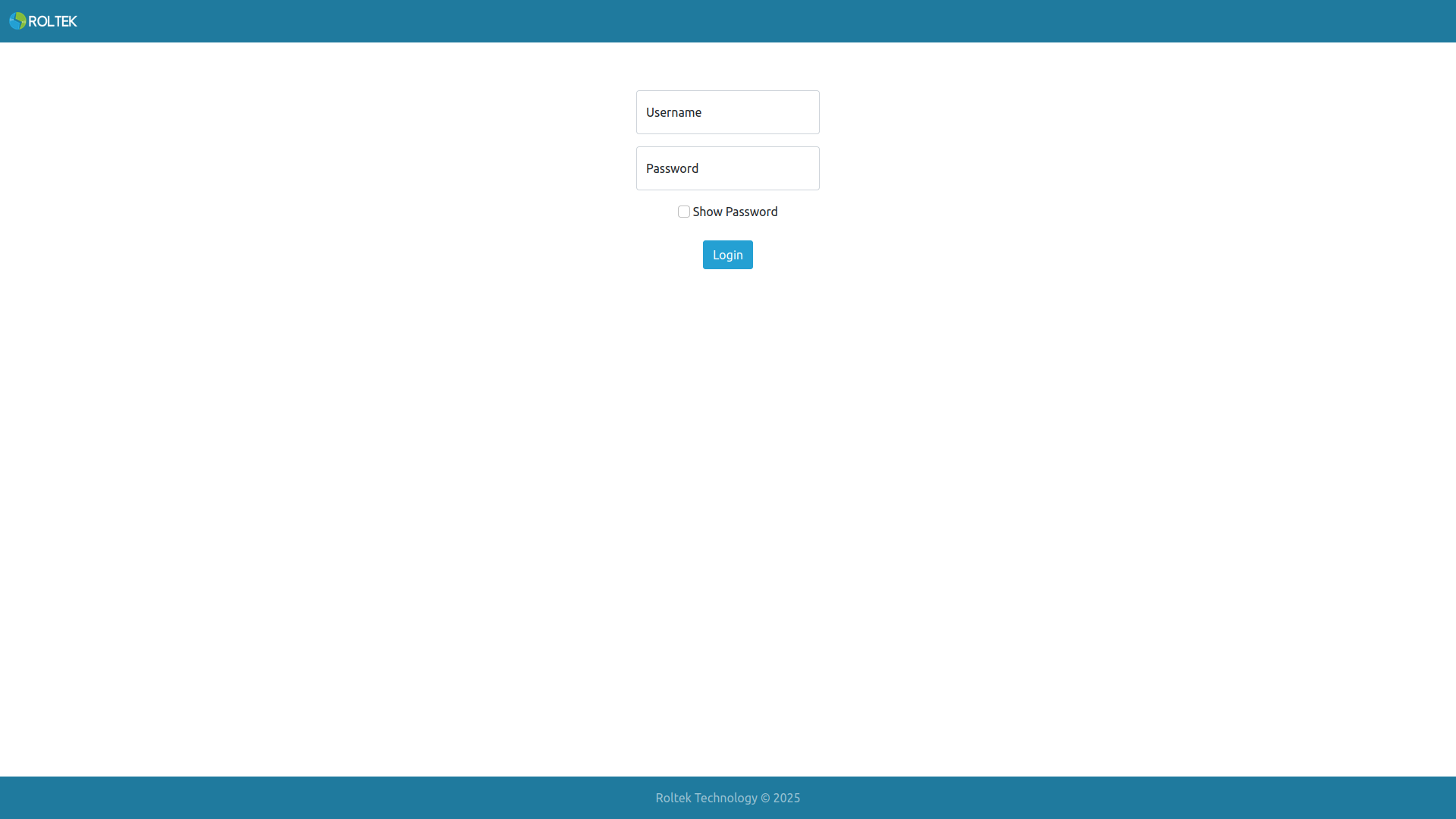
If the login is successful, the Status page should open.
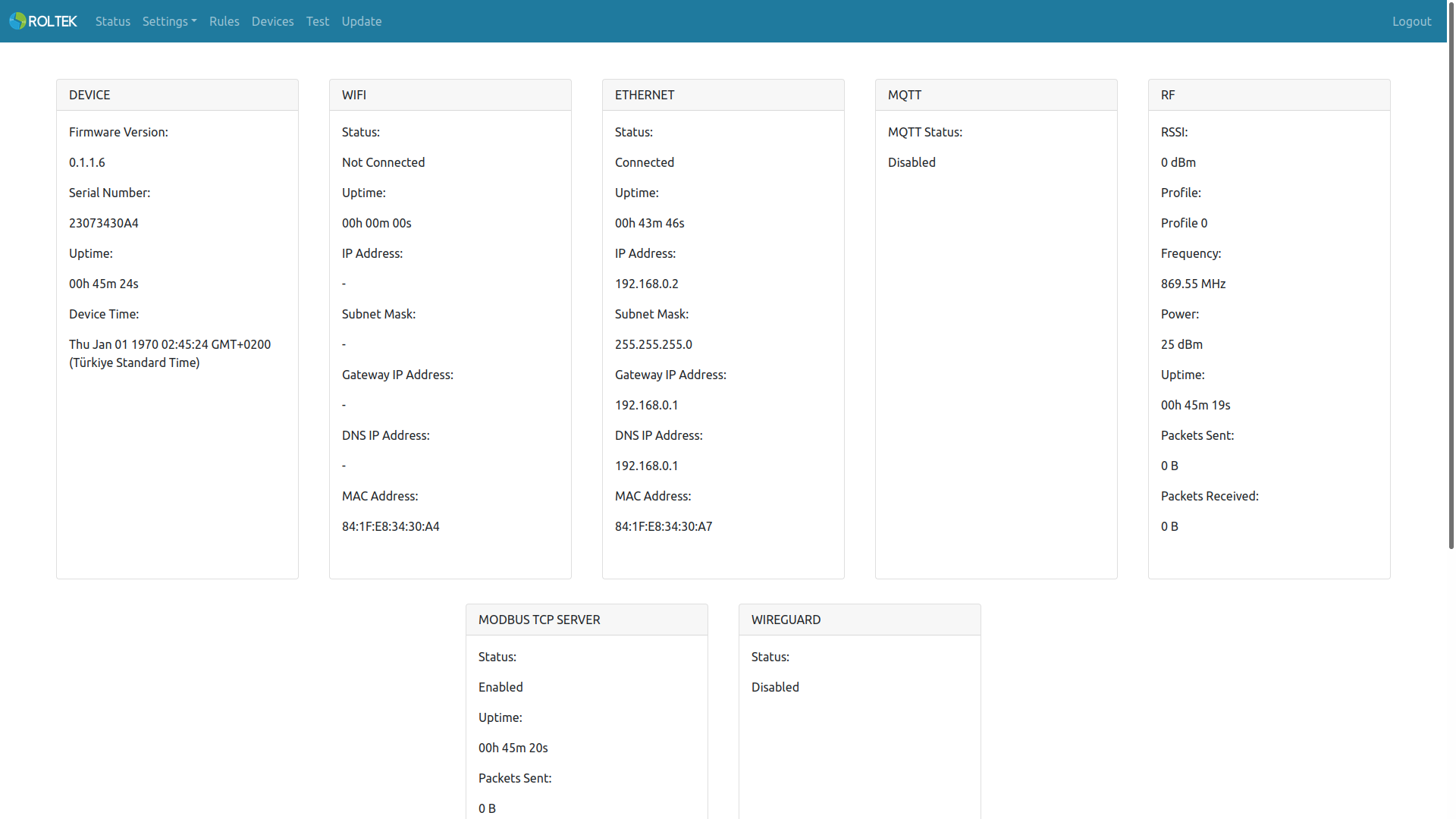
On this screen, the status of the device can be observed. The following settings can be configured under the relevant headings in the Settings tab:
- Device
- RF
- WiFi
- Ethernet
- Modbus
- MQTT
- IO
- Date & Time
- Firewall
- Ping
- Wireguard
In the Rules tab, other Modbus devices, MQTT publisher, and MQTT RPC can be configured.
In the Devices tab, settings related to adding other ModProBus devices to the RF network can be configured.
In the Test tab, the RF connections of other ModProBus devices can be tested.
In the Update tab, the device's firmware can be updated.