Traffic Rules
To set the device's traffic rules:
- Firewall
- Traffic Rules
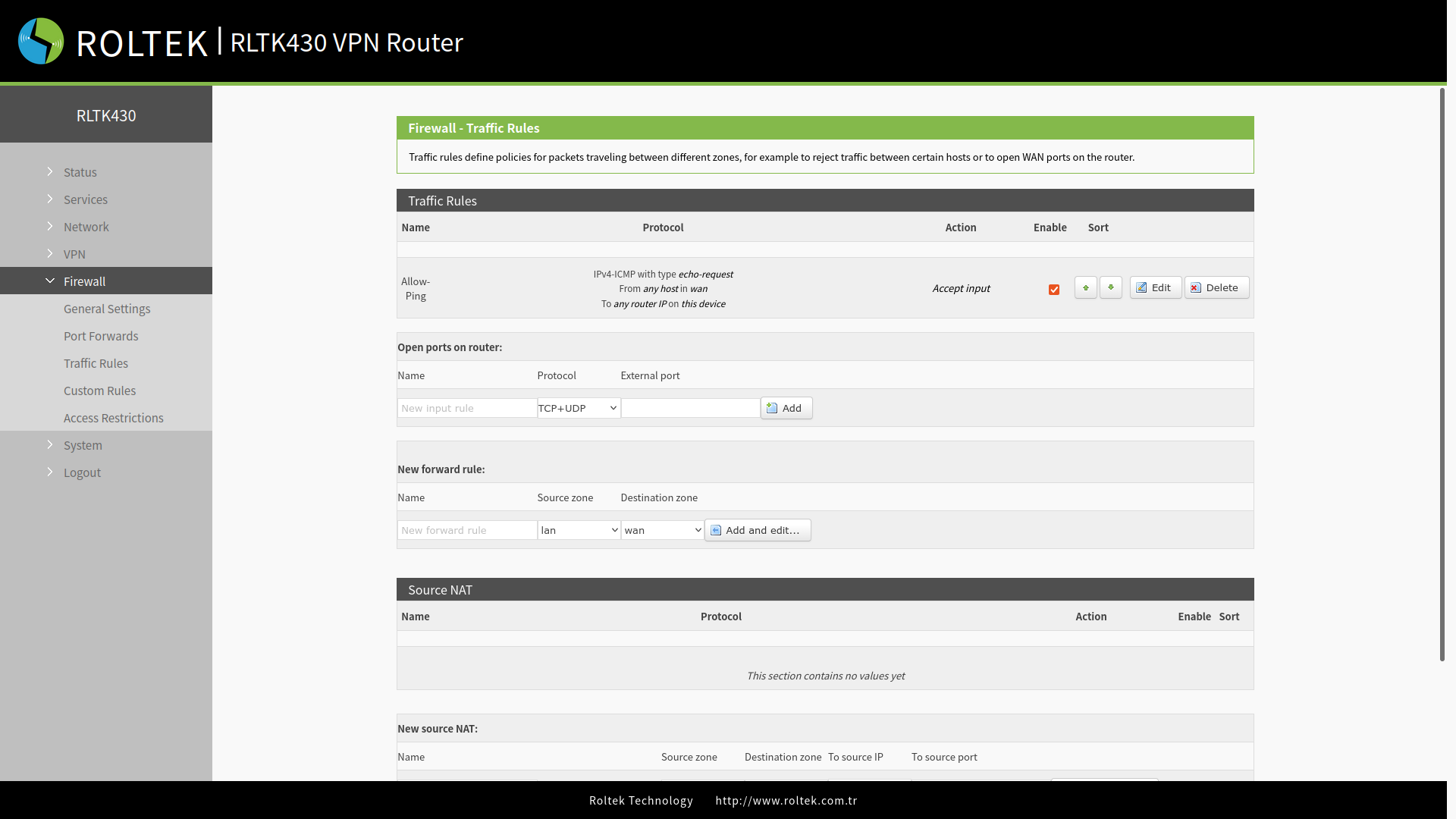
follow the menus. Traffic rules can filter specific types of internet data and can block internet access requests to enhance network security. Press the Add and edit... button to add.
Settings can be made on the incoming page.
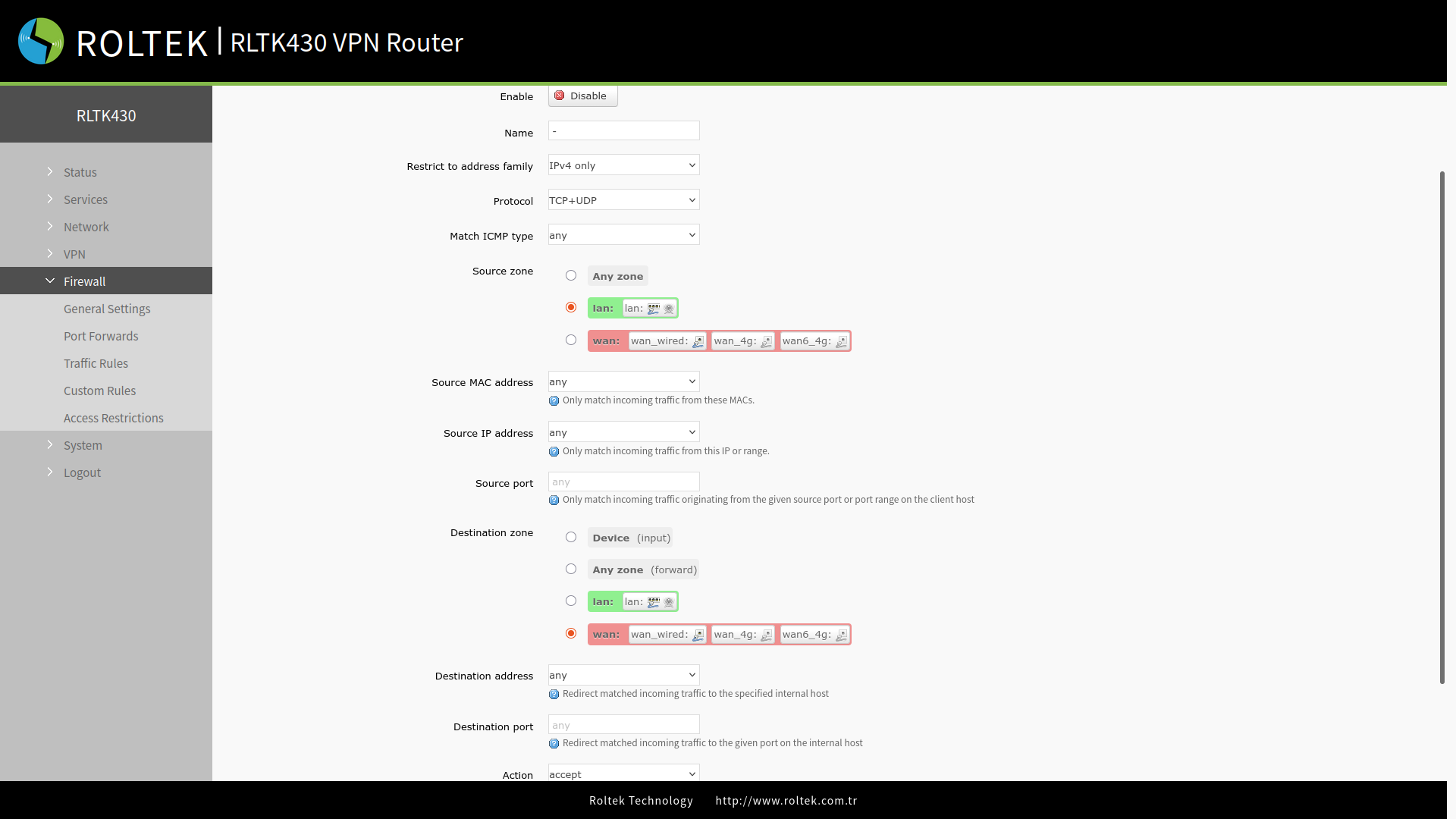
| Parameter | Description | Default Value |
|---|---|---|
| Enable | Enable/Disable | Enable |
| Name | Name of the rule | - |
| Restrict to address family | Only IPv4 | Only IPv4 |
| Protocol | TCP+UDP/TCP/UDP/ICMP | TCP+UDP |
| Match ICMP type | Matching ICMP rule, match any. | Any |
| Source zone | Any zone/LAN/WAN | LAN |
| Source MAC address | The source MAC address that matches this rule can be multiple MAC addresses. The MAC addresses are specified separated by spaces. The "Any" option matches all MAC addresses. Note: When matching the source MAC address, leave the source IP address blank. | Any |
| Source IP address | The source IP address that matches this rule can be like an IP range, for example, 192.168.1.100-192.168.1.200. The "Any" option matches all IP addresses. Note: When matching the source IP address, leave the source MAC address blank. | Any |
| Source port | The source IP port that matches this rule can be a port range, for example, 8000-9000. The "Null" option matches all ports. | Null |
| Destination zone | Device/Any zone/LAN/WAN | Any |
| Destination address | The target IP address to match. The "Any" option matches all IP addresses. | Any |
| Destination port | The target port to match. The "Null" option matches all ports. | Null |
| Action | You can choose what action to take after receiving this type of data packets: drop, accept, reject, don't track. | Accept |
IP Address Blacklist
- In the Traffic Rules menu, click the Add and edit button in the New forward rule section after entering a name (Name).
- In the incoming interface, set Protocol to TCP+UDP, set the Source zone to lan, and set the Source IP address to a desired IP address. In this case, it was set to 192.168.1.163.
- Set the Destination zone to wan, set the Destination address to any, and then set the Action to reject. Click the Save & Apply button.
- As a result, the device with the IP address 192.168.1.163 has been prohibited from accessing external networks. You can add any traffic rules you want using the same logic.
IP Address Whitelist
- In the Traffic Rules menu, click the Add and edit button in the New forward rule section after entering a name (Name).
- In the incoming interface, set Protocol to TCP+UDP, set the Source zone to lan, and set the Source IP address to a desired IP address. For example, 192.168.1.150.
- Set the Destination zone to wan, set the Destination address to any, and then set the Action to accept. Click the Save & Apply button.
- After this, to reject all communication, add another rule by setting the Source IP address and Destination address values to any, and the Action to reject. In the order of the rules, the accept rule must come before the reject rule.